Step-by-step Tutorial: How to Tether Jailbreak iPod 3G Using RedSn0w 0.9.8b7b (Windows) [iOS 4.3.5]
Posted By admin On September 11, 2011 @ 8:30 pm In All,Cydia,Firmware,Software,Tutorial,Unlock & Jailbreak | Comments Disabled
 [1]
[1]
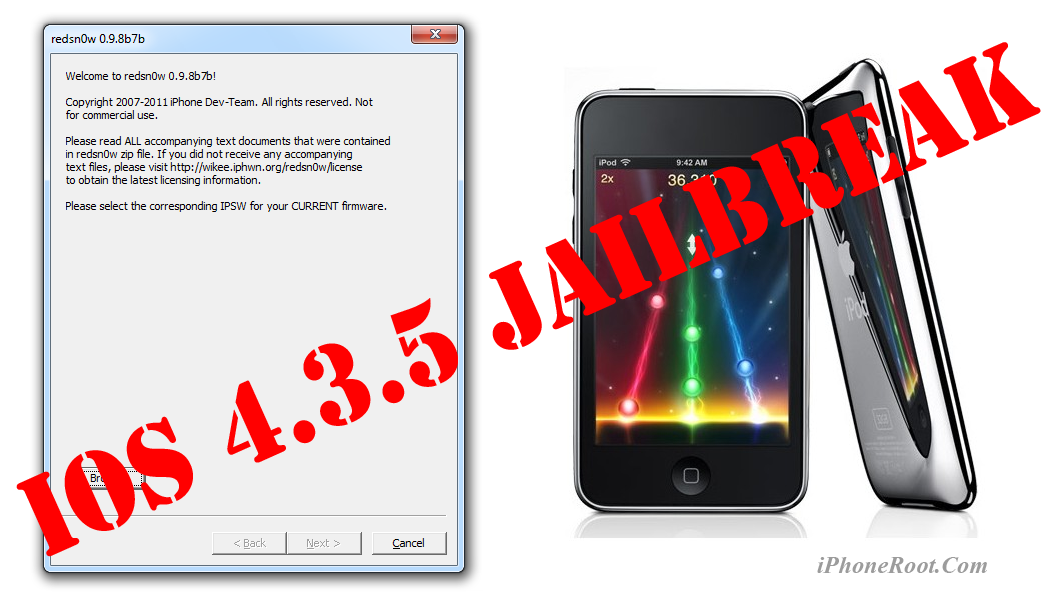
This is step-by-step instructions on how to perform tethered jailbreak of your iPod 3G on iOS 4.3.5 firmware using RedSn0w 0.9.8b7b for Windows.
Tethered jailbreak means that each time you restart your device you will need to connect it to a computer and run redsn0w.
If you have other device, here are links to our RedSn0w 0.9.8b7b iOS 4.3.5 jailbreak tutorials:
- Mac OS: iPhone 4 [2], iPhone 3GS [3], iPad 1 [4], iPod Touch 3G [5], iPod Touch 4G [6]
- Windows: iPhone 4 [7], iPhone 3GS [8], iPad 1 [9], iPod Touch 3G [10], iPod Touch 4G [11]
UPDATE: Please, consider reading our Jailbreak & Unlock FAQ [12], especially if you have questions or troubles.
Important information.
Please think first, before you do something.
If you have iOS 4.3.3 firmware - do an untethered jailbreak using one of our tutorials [12].
Step One
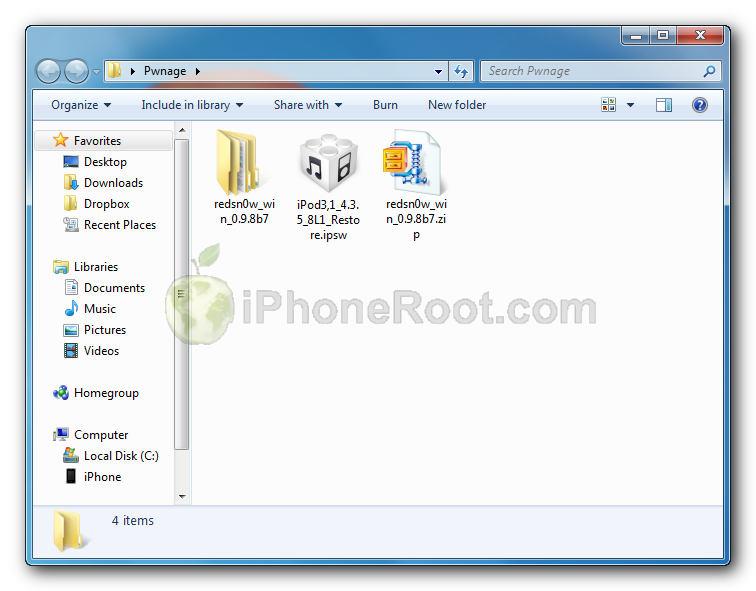
Create a folder on your desktop called Pwnage
Download RedSn0w version 0.9.8b7b or higher from here [13]. Save it in the Pwnage folder. Likewise, download iPod 3G firmware iOS 4.3.5:
- iOS 4.3.5:
Extract the redsn0w executable from the RedSn0w zip file into the same folder.
 [15]
[15]
Step Two
Connect your iPod 3G to the computer and launch iTunes.

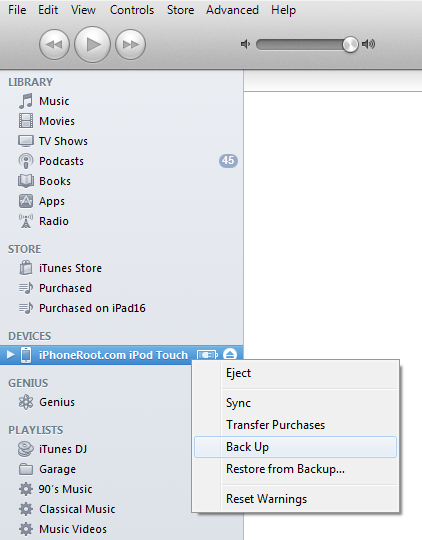
Select your iPod 3G from the list of devices on the left. Create a backup by right-clicking on iPod 3G name in Devices (iTunes left pane) and choosing Back Up.
 [16]
[16]
If you are already on iOS 4.3.5 you can now skip to step three.
Now hold down Option (Mac) or Shift (Windows) key and click the Restore button.
 [17]
[17]
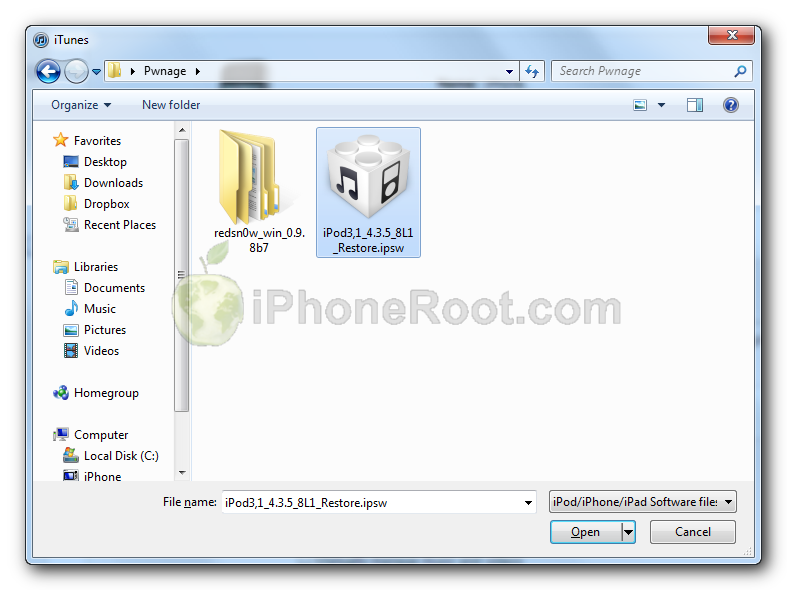
Navigate to the Pwnage folder on your desktop and select the 4.3.5 firmware ipsw. Click the Open button to continue.
 [18]
[18]
Step Three
Once iTunes has finished updating your iPod 3G to the desired firmware open the Pwnage folder on your desktop and launch the redsn0w application from the redsn0w folder we extracted earlier.
On Windows Vista or Windows 7 right click the executable and set it to run as administrator in Windows Vista/XP compatibility mode.
Step Four
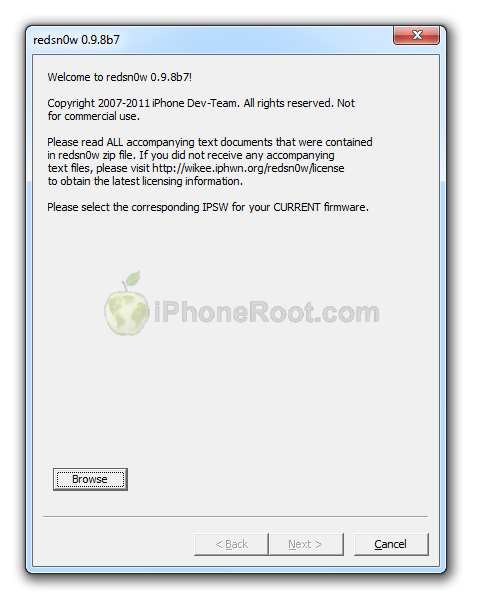
Once RedSn0w opens click the Browse button
Step Five
Select the 4.3.5 firmware ipsw we placed in the Pwnage folder on our desktop then click Open.
[18]
Step Six
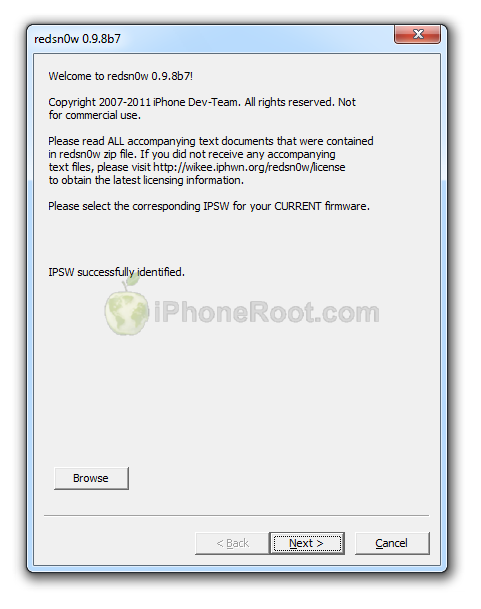
Once the firmware has been verified click the Next button to continue.
Step Seven
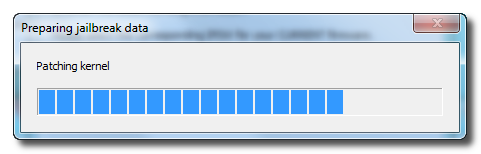
RedSn0w will now prepare the jailbreak data
Step Eight
From this window you can select the jailbreak options you would like.
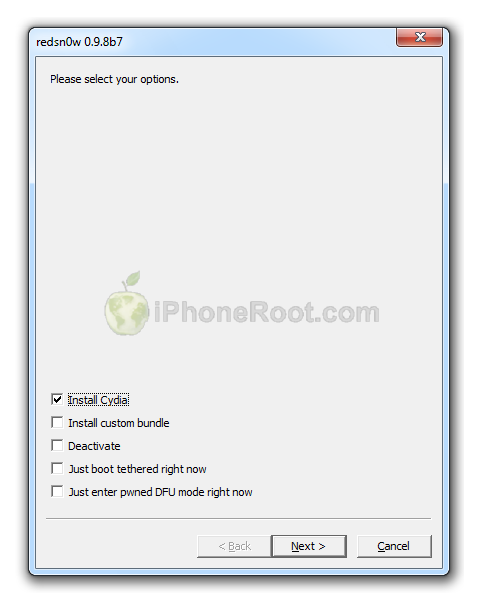
Make sure Cydia is selected.
Click the Next button to continue
Step Nine
Please plug your iPod 3G into the computer and make sure its OFF then click the Next button
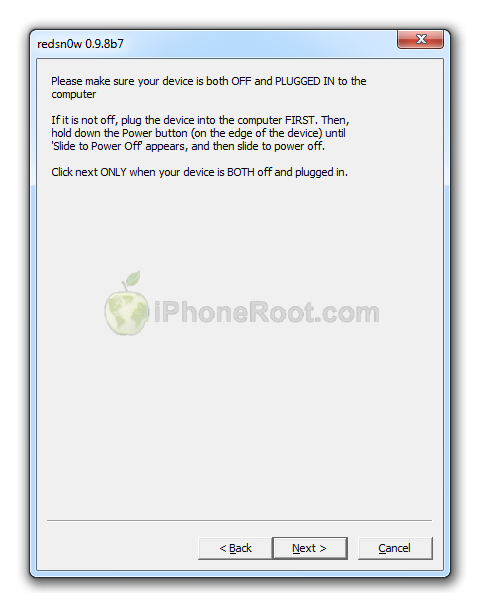
Step Ten
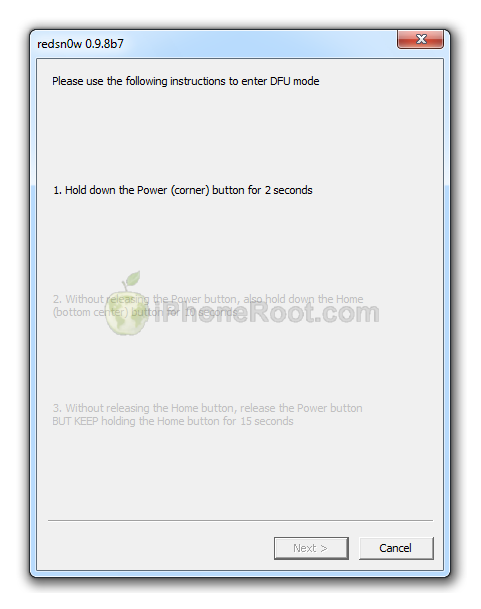
RedSn0w will now guide you through the steps to get into DFU mode.
1. Hold down Power button for 2 seconds.
2. Without releasing Power button, hold down both the Home button and the Power button for 10 seconds.
3. Release the Power button and continue holding the Home button until RedSn0w detects the device.
 [19]
[19] 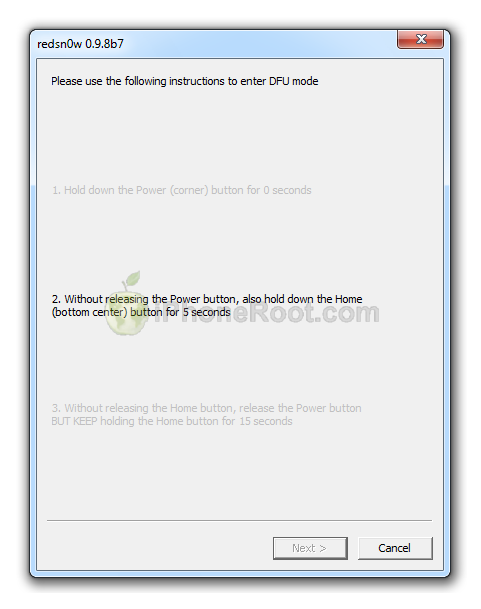 [20]
[20]  [21]
[21]
If you have problems try again. Here is a video showing this Step 10:
Step Eleven
iPod 3G will reboot
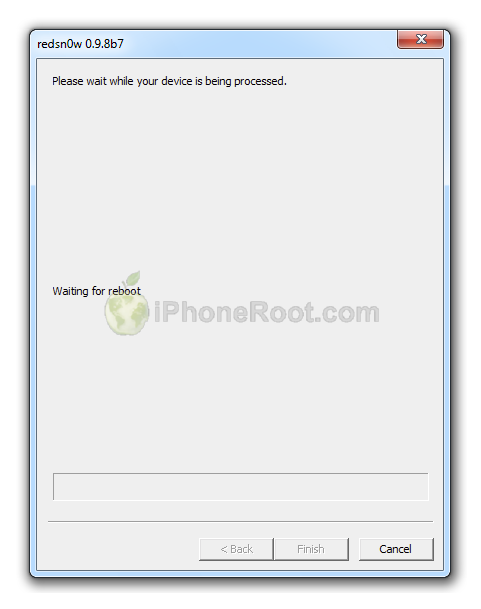
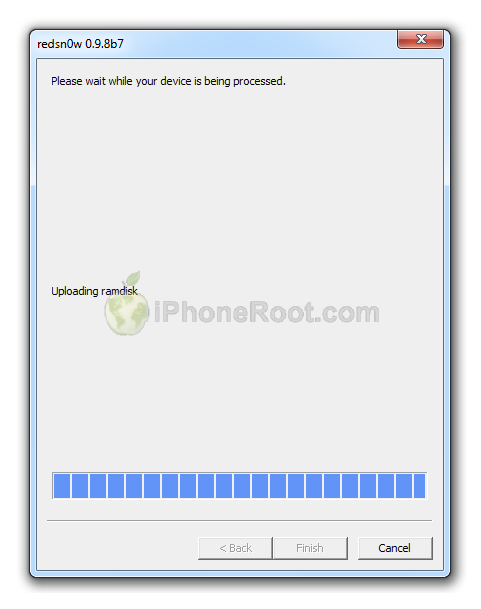
Step Twelve
RedSn0w will then begin uploading the new RAM Disk and Kernel.
Step Thirteen
Once this is complete you will be notified that RedSn0w is done. Click the Finish button.
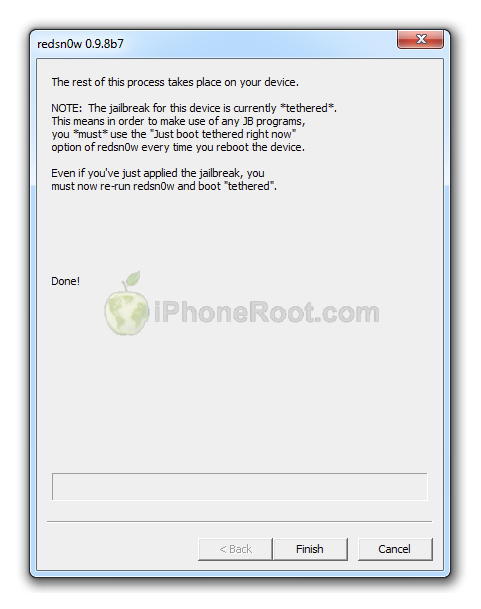
Once RedSn0w has finished you will need to boot tethered your iPod 3G. You will need to do it everytime you restart.
Rerun RedSn0w and this time select Just boot tethered right now from the list of options instead of installing Cydia.
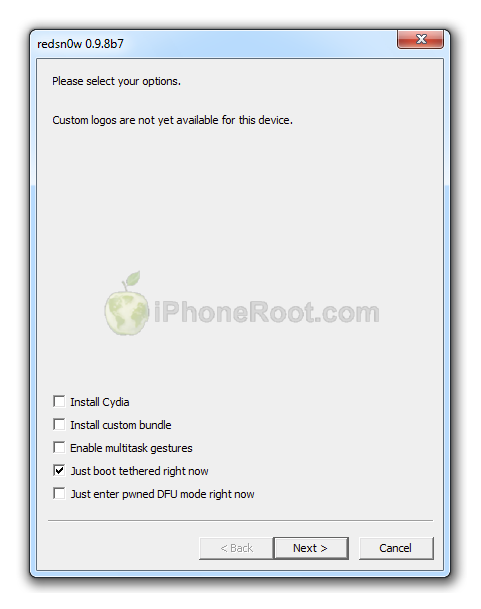
When your iPod 3G finishes rebooting (5 minutes or so) it will be jailbroken with Cydia on the SpringBoard.
Step Fourteen
Run Cydia. Let it do all the necessary updates.
To have access to the root file system of your iPod 3G (via file managers like iFunBox or iPhone Explorer) install application called afc2add in Cydia.
Step Fifteen
Do not forget to change your default password [22] if you've installed openssh.
[via iclarified]
Comments Disabled (Open | Close)
Article printed from iPhoneRoot.com: https://iphoneroot.com
URL to article: https://iphoneroot.com/howto-tether-jailbreak-ipod-3g-redsn0w-098-windows-ios435/
URLs in this post:
[1] Image: https://iphoneroot.com/wp-content/uploads/2011/09/redsn0w-098-ipod3g-win.png
[2] iPhone 4: https://iphoneroot.com/howto-tether-jailbreak-iphone-4-redsn0w-098-mac-ios435/
[3] iPhone 3GS: https://iphoneroot.com/howto-tether-jailbreak-iphone-3gs-redsn0w-098-mac-ios435/
[4] iPad 1: https://iphoneroot.com/howto-tether-jailbreak-ipad-redsn0w-098-mac-ios435/
[5] iPod Touch 3G: https://iphoneroot.com/howto-tether-jailbreak-ipod-3g-redsn0w-098-mac-ios435/
[6] iPod Touch 4G: https://iphoneroot.com/howto-tether-jailbreak-ipod-4g-redsn0w-098-mac-ios435/
[7] iPhone 4: https://iphoneroot.com/howto-tether-jailbreak-iphone-4-redsn0w-098-windows-ios435/
[8] iPhone 3GS: https://iphoneroot.com/howto-tether-jailbreak-iphone-3gs-redsn0w-098-windows-ios435/
[9] iPad 1: https://iphoneroot.com/howto-tether-jailbreak-ipad-redsn0w-098-windows-ios435/
[10] iPod Touch 3G: https://iphoneroot.com/howto-tether-jailbreak-ipod-3g-redsn0w-098-windows-ios435/
[11] iPod Touch 4G: https://iphoneroot.com/howto-tether-jailbreak-ipod-4g-redsn0w-098-windows-ios435/
[12] Jailbreak & Unlock FAQ: https://iphoneroot.com/jailbreak-unlock-tutorials-and-faq/
[13] here: https://iphoneroot.com/utilities/#RedSn0w
[14] iPod3,1_4.3.5_8L1_Restore.ipsw: http://appldnld.apple.com/iPhone4/041-1964.20110721.P9Cg3/iPod3,1_4.3.5_8L1_Restore.ipsw
[15] Image: https://iphoneroot.com/wp-content/uploads/2011/09/redsn0w-098-ipod-1a.png
[16] Image: https://iphoneroot.com/wp-content/uploads/2011/07/ipod-itunes.png
[17] Image: https://iphoneroot.com/wp-content/uploads/2011/07/itunes-ipod-touch.png
[18] Image: https://iphoneroot.com/wp-content/uploads/2011/09/redsn0w-098-ipod-2a2.png
[19] Image: https://iphoneroot.com/wp-content/uploads/2011/08/iphone-jail435-7a.png
[20] Image: https://iphoneroot.com/wp-content/uploads/2011/08/iphone-jail435-8a.png
[21] Image: https://iphoneroot.com/wp-content/uploads/2011/08/iphone-jail435-9a.png
[22] change your default password: https://iphoneroot.com/secure-your-jailbroken-iphone/
Click here to print.
Comments Disabled To "Step-by-step Tutorial: How to Tether Jailbreak iPod 3G Using RedSn0w 0.9.8b7b (Windows) [iOS 4.3.5]"
#1 Comment By VillyDaBro- On October 2, 2011 @ 12:46 pm
У МЕНЯ ПРОБЛЕМА. СДЕЛАЛ ВСЕ КАК СКАЗАНО ПОТОМ ПОЯВЛЯЕТ
НА АЙПОДЕ ЗНАЧОК Cydia БЕЗ ИКОНА ТУПО КВАДРАТ БЕЛЫЙ И НЕ ЗАХОДИТ В НЕГО И САФАРИ ЧТО ДЕЛАТЬ??? 2 РАЗА УЖЕ ПРОБОВАЛ
admin Reply:
October 2nd, 2011 at 2:35 pm
какая прошивка, устройство?
#2 Comment By VillyDaBro- On October 2, 2011 @ 7:50 pm
4.3.5 (8L1)
VillyDaBro- Reply:
October 2nd, 2011 at 7:51 pm
ipod touch 3g 64 gb
admin Reply:
October 3rd, 2011 at 1:34 am
запускаться надо как на шаге 13
#3 Comment By VillyDaBro- On October 2, 2011 @ 8:38 pm
у меня 1 вопрос. в 9 шаге написано подсоединить айпод и вырубить его. а в 10 написано держат кнопку врехнюю 2 сек.
а на видео там он тока кнопку держит чтобы вырубить его
а потом нижнюю и верхнюю держит и тока нижнюю.
у меня вопрос нужно ли после выключения держать верхнюю с торца??? просто на видео по другому
admin Reply:
October 3rd, 2011 at 1:31 am
я вырубаю всегда и начинаю с нажатия торцевой.
#4 Comment By VillyDaBro- On October 3, 2011 @ 2:59 pm
в редсноу написано держать торцевую и квадратную 15 сек
у меня он где-то на 9 секунду делает след шаг
admin Reply:
October 3rd, 2011 at 3:38 pm
тут когда процесс пошел - можно отпустить.
#5 Comment By VillyDaBro- On October 3, 2011 @ 5:05 pm
блин значит делал все правильно.
а сидия не пашет с сафари вместе
:-0
admin Reply:
October 3rd, 2011 at 5:36 pm
а сафари то тут при чем? странные вещи..
#6 Comment By VillyDaBro- On October 4, 2011 @ 3:18 pm
УРА! Я ДЛЕЙБРЕЙКНУЛ!
скажите плз как качать бесплатно платные игры на айпод тач 3г с джейлом без вай фая?
admin Reply:
October 4th, 2011 at 3:20 pm
мои поздравления.
пиратские приложения качаются на пиратских сайтах
#7 Comment By VillyDaBro- On October 4, 2011 @ 3:43 pm
а какие сайты? можете дать ссылку плз?
admin Reply:
October 4th, 2011 at 3:51 pm
я этим не пользуюсь. мне проще 30р заплатить и купить игруху.
#8 Comment By liroy On October 9, 2011 @ 1:48 pm
все сделал как в инстуркции теперь не открываеться клидия и сафари ток хочу откыть она сразу скрываеться??? почему
admin Reply:
October 9th, 2011 at 2:39 pm
надо сделать загрузку just boot tethered.
#9 Comment By liroy On October 9, 2011 @ 2:43 pm
я делал, и значок клидии уже появился но он не отткрываеться?
admin Reply:
October 9th, 2011 at 5:42 pm
хм. ну если все делаете правильно и не открывается..
советовать мало что есть - разве что попробуйте все сначала.
#10 Comment By Vladik Kushnyrev On October 11, 2011 @ 10:26 pm
на 6 шаге пишет: Unable to recognize specified IPSW. что делать?
Nick Reply:
October 11th, 2011 at 10:39 pm
файл есть и он назывется iPod3,1_4.3.5_8L1_Restore.ipsw?
#11 Comment By bumbum On November 16, 2011 @ 8:50 pm
у меня проблема вышла картинка на айподе USB стрелка iTunes значок что делаать??
admin Reply:
November 16th, 2011 at 10:48 pm
после чего это вылезло?