Step-by-step Tutorial: How to Untether Jailbreak and Unlock Your iPhone 3GS Using RedSn0w 0.9.6rc9 (Windows) [iOS 4.3.1]
Posted By admin On April 5, 2011 @ 9:32 pm In All,Cydia,Firmware,Software,Tutorial,Unlock & Jailbreak | Comments Disabled
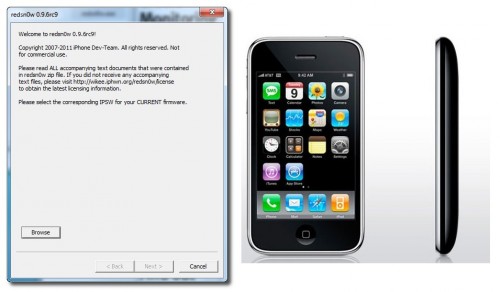
This is step-by-step instructions on how to perform untethered jailbreak and unlock for your iPhone 3GS on iOS 4.3.1 firmware using RedSn0w 0.9.6rc9 for Windows.
If you need unlock Redsn0w will provide you with choice of updating your baseband to 06.15.
UPDATE: Please, consider reading our Jailbreak & Unlock FAQ [1], especially if you have questions or troubles.
Important information.
Please think first, before you do something.
If you need unlock and have 05.13 baseband or lower - do not update to 4.3.1, use PwnageTool 4.3 or Sn0wBreeze 2.5 to create custom firmware!
WARNING: updating to 06.15 baseband for iPhone unlock may disable your GPS [2]
IMPORTANT FOR UNLOCKERS
During this process you can update your baseband to the 06.15 version. If you are on 05.14 or 05.15 or higher you will need to do this to unlock. You do not need to do this for jailbreak only. Please read the following very carefully before deciding whether to do this.
- There is no way to come back down from baseband 06.15, and there’s no hiding the baseband version from Apple. You’ll be voiding your warranty in a very obvious way.
- If some future baseband comes out with a critical fix, you won’t be able to update to it if it remains down in the 05.xx sequence (then again, you wouldn’t update to it if you wanted to keep your unlock anyway).
- If you have 06.15 on your iPhone you won’t ever be able to restore to stock firmware (it will fail). You’ll need to only restore to custom IPSWs (then again, if you’re unlocker you should already be doing that).
Don’t update to 06.15 if you don’t need to, you can just jailbreak without unlocking using this tutorial! Only update baseband if you need the unlock and you’re stuck on baseband version 05.14 or 05.15, and you’re willing to assume the above risks. You can find out your baseband version in Settings -> General -> About -> Modem Firmware.
Those with an unlockable baseband and on a lower firmware should use PwnageTool instead to update without upgrading your baseband.
Step One
Create a folder on your desktop called Pwnage Download RedSn0w from here [3]. Save it in the Pwnage folder. Likewise, download the latest 4.3.1 firmware from below and place it in the same folder:
iPhone 3GS iOS 4.3.1:
Extract the redsn0w executable from the RedSn0w zip file into the same folder. 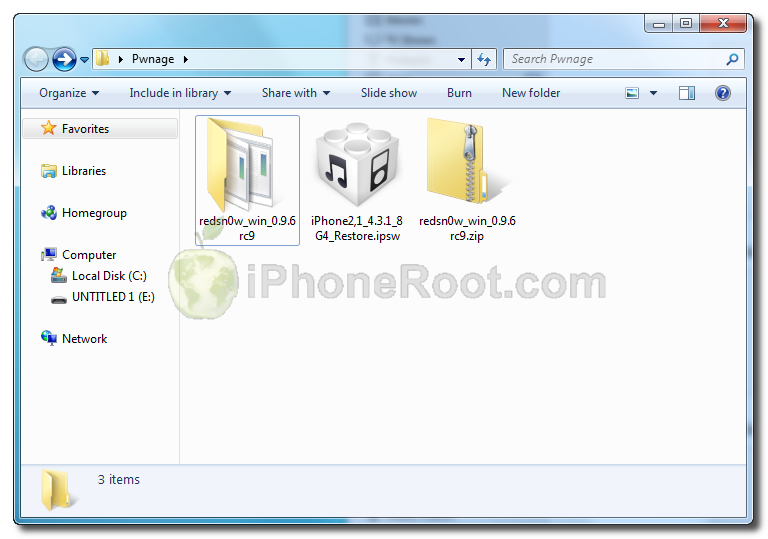 [5]
[5]
Step Two
***If you are already on iOS 4.3.1 you can skip this step.
Connect your iPhone to the computer and launch iTunes. Create a backup, since all your data on iPhone will be erased. 
Select your iPhone from the list of devices on the left. Now hold down Shift and click the Restore button. Restore is preferred as it won't create any wasted space on your iPhone. 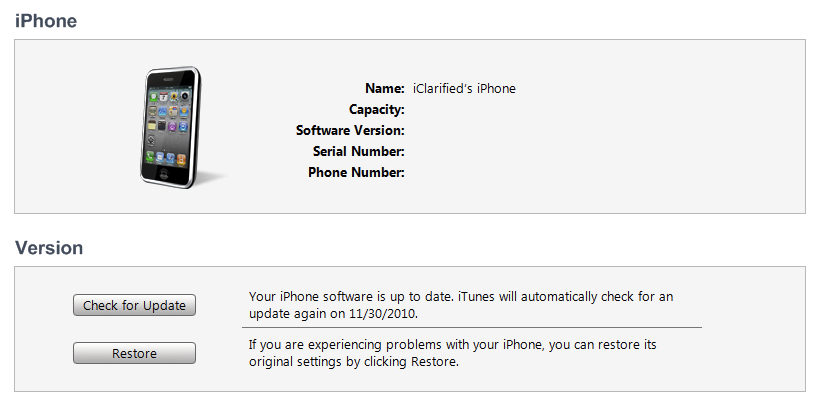 [6]
[6]
Navigate to the Pwnage folder on your desktop and select the 4.3.1 firmware ipsw. Click the Choose button to continue.
Step Three
Once iTunes has finished updating your iPhone to the desired firmware open the Pwnage folder on your desktop and launch the redsn0w application from the redsn0w folder we extracted earlier. On Windows Vista or Windows 7 right click the executable and set it to run as administrator in Windows XP compatibility mode.
Step Four
Once RedSn0w opens click the Browse button 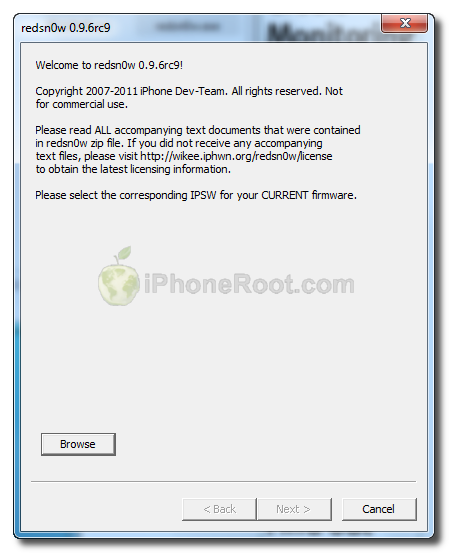
Step Five
Select the 4.3.1 firmware ipsw we placed in the Pwnage folder on our desktop then click Open.  [7]
[7]
You will be asked if this device is a newer fixed model. If yours is then click the Yes button; otherwise, click the No button. If you do not know follow instructions to identify. If your answer is wrong - you'll probably have to start from the begining.
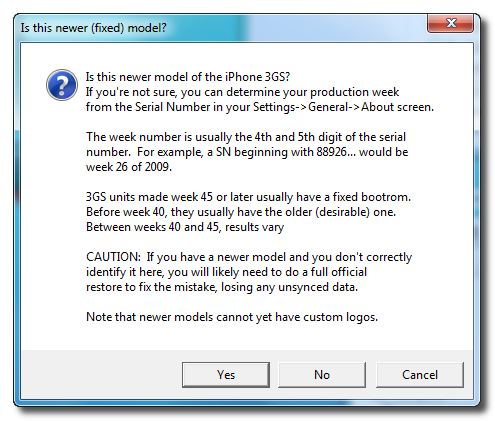
Step Six
Once the firmware has been verified click the Next button to continue. 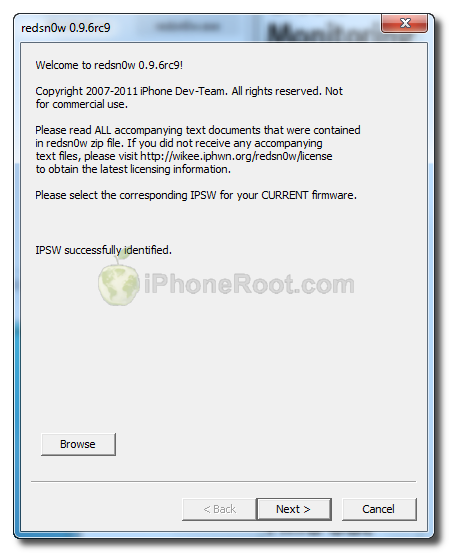 [8]
[8]
Step Seven
RedSn0w will now prepare the jailbreak data 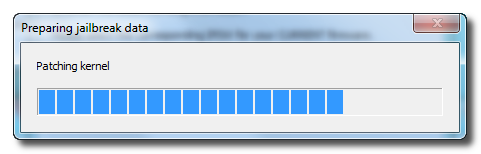
Step Eight
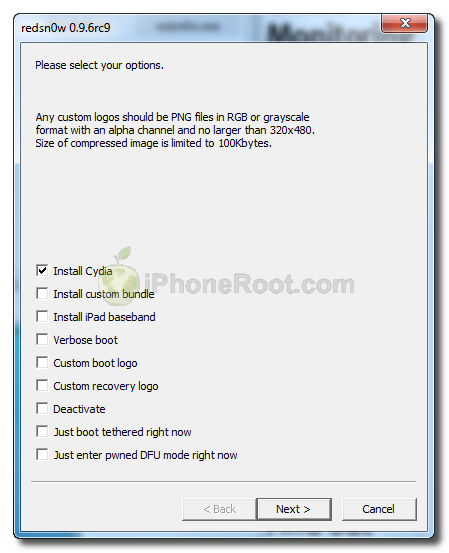
From this window you can select the jailbreak options you would like.  [9]
[9]
Verbose boot displays detailed information on boot of your device and is generally only needed by developers and advanced users.
Make sure Cydia is selected.
You can also select Custom boot logo and Custom recovery logo. When you click to select each custom logo option a dialog window will appear asking you to select the image. Locate the image you would like to use then press the Open button. * Remember the rules for boot logos are: RGB or Grayscale format with Alpha channel and dimension below 320x480.
If you read the warning above and you would like to update your baseband to the 06.15 iPad version for unlock then check Install iPad Baseband. Click Yes when prompted to confirm your decision. 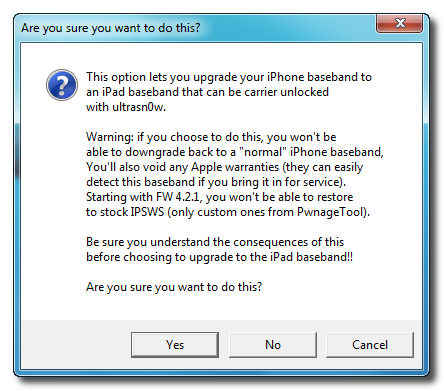
Click the Next button to continue
 [10]
[10]
Step Nine
Please plug your iPhone into the computer and make sure its OFF then click the Next button 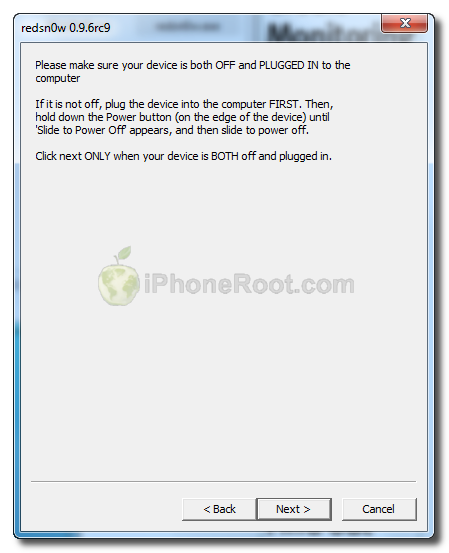 [11]
[11]
Step Ten
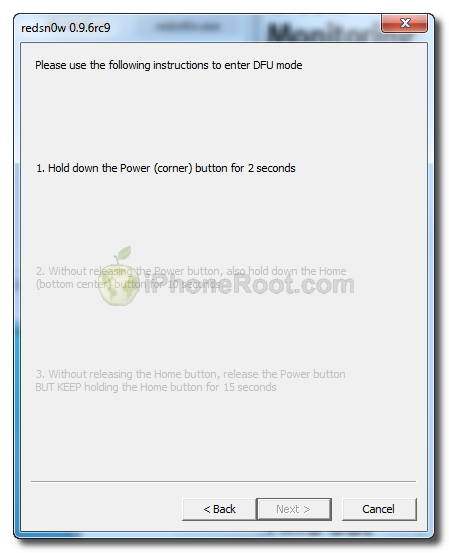
RedSn0w will now guide you through the steps to get into DFU mode.
1. Hold down Power button for 2 seconds.
2. Without releasing Power button, hold down both the Home button and the Power button for 10 seconds.
3. Release the Power button and continue holding the Home button until RedSn0w detects the device.
 [12]
[12] 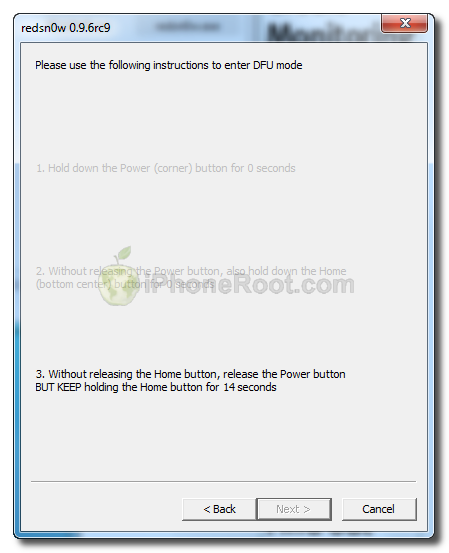 [13]
[13]
If you have problems try again. Here is a video showing this Step 10:
Step Eleven
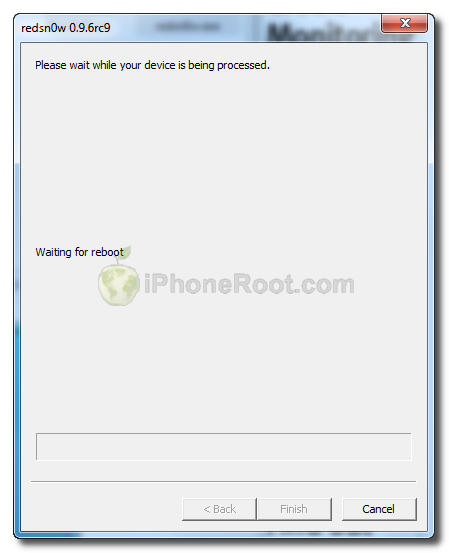
RedSn0w will now downloaded the iPad baseband if needed and your iPhone will reboot
 [14]
[14]
Step Twelve
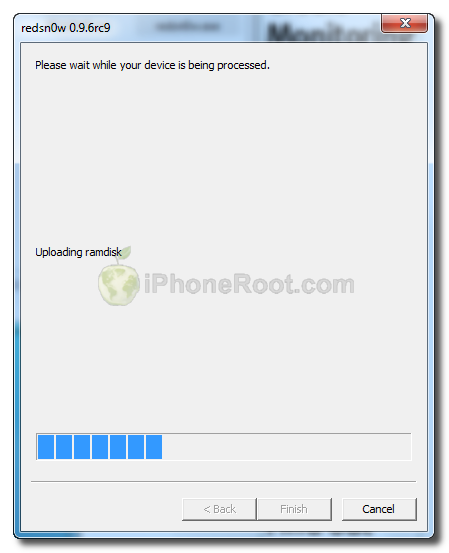
RedSn0w will then begin uploading the new RAM Disk and Kernel.
 [15]
[15]
Step Thirteen
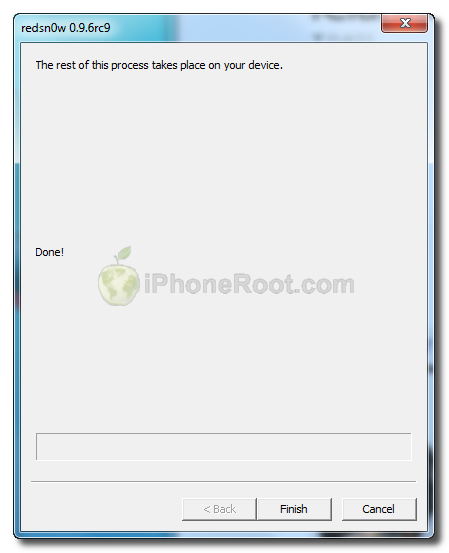
Once this is complete you will be notified that RedSn0w is done. Click the Finish button. When your iPhone finishes rebooting (5 minutes or so) it will be jailbroken with Cydia on the SpringBoard.
 [16]
[16]
Step Fourteen
When your iPhone has restarted you can run Cydia. Let it do all the necessary updates. To have access to the root file system of your iPhone (via file managers like iFunBox or iPhone Explorer) install application called afc2add in Cydia.
Step Fifteen
If you need carrier unlock and have baseband 06.15 – install ultrasn0w via Cydia:
- Open Cydia.
- Go to Manage than click Sources.
- Click Edit button in the top right corner.
- Then click Add button in the top left corner.
- Type http://repo666.ultrasn0w.com and click Add Source.
- Then click Done and press on newly created repository.
- Click on ultrasn0w and hit Install button in the top right.
- One installed, restart your iPhone.
- Disable 3G on T-Mobile USA.
- You're done! You should see the network.
Step Sixteen
Do not forget to change your default password [17] if you've installed openssh. [via iclarified]
Comments Disabled (Open | Close)
Article printed from iPhoneRoot.com: https://iphoneroot.com
URL to article: https://iphoneroot.com/howto-untether-jailbreak-unlock-iphone-3gs-redsn0w-096rc9-windows-ios431/
URLs in this post:
[1] Jailbreak & Unlock FAQ: https://iphoneroot.com/jailbreak-unlock-tutorials-and-faq/
[2] WARNING: updating to 06.15 baseband for iPhone unlock may disable your GPS: https://iphoneroot.com/updating-to-ipad-baseband-disable-gps/
[3] here: https://iphoneroot.com/utilities/#RedSn0w
[4] iPhone2,1_4.3.1_8G4_Restore.ipsw: http://appldnld.apple.com/iPhone4/041-0549.20110325.ZxP8u/iPhone2,1_4.3.1_8G4_Restore.ipsw
[5] Image: https://iphoneroot.com/wp-content/uploads/2011/04/redsn0w096-3gs-2.png
[6] Image: https://iphoneroot.com/wp-content/uploads/2010/11/redsn0w-096b5-3.png
[7] Image: https://iphoneroot.com/wp-content/uploads/2011/04/redsn0w096-3gs-3.png
[8] Image: https://iphoneroot.com/wp-content/uploads/2011/04/redsn0w096-3gs-4.png
[9] Image: https://iphoneroot.com/wp-content/uploads/2011/04/redsn0w096-3gs-5.png
[10] Image: https://iphoneroot.com/wp-content/uploads/2011/04/redsn0w096-3gs-51.png
[11] Image: https://iphoneroot.com/wp-content/uploads/2011/04/redsn0w096-3gs-7.png
[12] Image: https://iphoneroot.com/wp-content/uploads/2011/04/redsn0w096-3gs-8.png
[13] Image: https://iphoneroot.com/wp-content/uploads/2011/04/redsn0w096-3gs-10.png
[14] Image: https://iphoneroot.com/wp-content/uploads/2011/04/redsn0w096-3gs-11.png
[15] Image: https://iphoneroot.com/wp-content/uploads/2011/04/redsn0w096-3gs-12.png
[16] Image: https://iphoneroot.com/wp-content/uploads/2011/04/redsn0w096-3gs-13.png
[17] change your default password: https://iphoneroot.com/secure-your-jailbroken-iphone/
[18] : http://iphoneroot.com/RU/howto-untether-jailbreak-unlock-iphone-3gs-pwnagetool-4331-macos-ios433/
[19] : https://sites.google.com/a/iphone-dev.com/files/home/redsn0w_win_0.9.6rc16.zip
Click here to print.
Comments Disabled To "Step-by-step Tutorial: How to Untether Jailbreak and Unlock Your iPhone 3GS Using RedSn0w 0.9.6rc9 (Windows) [iOS 4.3.1]"
#1 Comment By Юля On April 6, 2011 @ 7:18 pm
Здравствуйте.
Помогите пожалуста.У меня 3gs с прошивкой 4.3 и модемом 05.16.01 и 35 неделя выпуска,что мне делать?Возможен ли анлок по вышенаписанной схеме? 05.16.01-это старой или новой версии модем,мне надо повышеть его до 06.15?
admin Reply:
April 7th, 2011 at 1:19 am
осознавая все риски (например, потерю gps или просто ничего не заработает) можно обновить до модема 06.15, тогда будет работать анлок ultrasn0w, который выйдет в ближайшие дни.
#2 Comment By oliver On April 13, 2011 @ 11:47 pm
Подскажи мне такую вещь: после джейла указанным методом на 3GS не работает CYDIA. Отображается белый квадрат, который сворачивается сразу же после включения. Уже не первый раз делаю джейл, но такое впервые. 3 раза восстанавливался и пробовал снова, но все без толку.
Olem Reply:
April 17th, 2011 at 9:26 pm
У меня такая же проблема!!
Так еще вдобавок и сафари не загружается! Открываеся и сразу же выкидывает!!!
Ребята помогите!!!!
У меня прошивка 4.3.2....на форумах написано,что без проблем и с этой прошивкой можно!!
admin Reply:
April 19th, 2011 at 1:53 am
с 4.3.2 джейл возможно, но пока привязанный.
просто на первом этапе в редсноу ссылку на 4.3.1 даете и ок.
DEMAN2014 Reply:
May 10th, 2011 at 3:16 pm
Тоже самое, помогите!!!
DEMAN2014 Reply:
May 10th, 2011 at 3:19 pm
у меня iPhone 3GS/iOS 4.3.3/Redsn0w_win_0.9.6rc16/делал вчера
admin Reply:
May 12th, 2011 at 12:20 pm
попробуйте другой метод - pwnagetool или sn0wbreeze.
#3 Comment By Руслан On April 18, 2011 @ 10:23 am
Спасибо создателем!!!!айфон 3gs полет нормальный все работает и сети и жпс.........
admin Reply:
April 19th, 2011 at 1:52 am
отлично!
#4 Comment By Mr.Koks On April 19, 2011 @ 6:42 pm
Скачал Redsnow 0.9.6rs11 и 12, обе в процессе взлома вылетают! Что делать? Подскажите пожалуйста
admin Reply:
April 26th, 2011 at 12:49 am
попробуйте на другом компе. какая ос?
#5 Comment By Рома On April 25, 2011 @ 4:17 pm
у меня прошивка 4,3 и прошивка модема 05.16.01 на iphone 3gs можно ли сделать джейлбрейк и анлок
admin Reply:
April 26th, 2011 at 12:41 am
джейлбрейк да, анлок только с повышением модема, осознавая риски, например, может перестать работать gps.
#6 Comment By anton On April 30, 2011 @ 3:22 pm
здравствуйте! у меня iphone 3 gs 16 gb прошивка модема 05.15.04! хочу сделать только отвязку от оператора(свободным для других операторов) что мне делать?
admin Reply:
May 4th, 2011 at 2:24 am
следовать нашим инструкциям осознавая риски.
#7 Comment By антон On May 1, 2011 @ 8:09 pm
здравствуйте! у меня такая проблема ! я запускаю redsnow нажимаю browse выбираю 4.3.2 а он мне unable to recognize specified ipsw ребята помогите что делать?
#8 Comment By Daud On May 3, 2011 @ 9:48 pm
Dauuuuuuud
#9 Comment By dmitry On May 5, 2011 @ 12:30 pm
Здравствуйте!
подскажите у меня 3GS версия 4.2.1 прошивка 05.15.04 и я боюсь ставить джеилбрейк в свзи с неполадками айфона...
admin Reply:
May 12th, 2011 at 12:19 pm
в чем неполадки?
#10 Comment By Alex On May 9, 2011 @ 3:23 pm
Приветствую, помогите пожалуйста, после проведения механических действий(рекомендации для перевода iPhone в режим DFU), iPhon отказывается ДАЖЕ включаться, прям беда какая-то, хотя делал всё по инструкции+ 5 раз пересмотрел видео. Спасите пожалуйста.
admin Reply:
May 12th, 2011 at 12:21 pm
как могу помочь то?
делаете значит неправильно.
#11 Comment By Usernoob On May 20, 2011 @ 4:48 pm
После прошивки не ловит сеть,что делать?
admin Reply:
May 21st, 2011 at 7:24 pm
РСТ? версия прошивки, модема?
#12 Comment By Andrey On May 23, 2011 @ 3:06 am
Приветствую! У меня такая проблема, начинаю делать рестор на вашу прошивку (iPhone2,1_4.3.1_8G4_Restore) при проверке восстановления прошивки в apple, вылазит ошибка 3194. Что делать? Мой айфон 3GS, 3.1.3. модем 05.12.01
admin Reply:
May 23rd, 2011 at 1:08 pm
это происходит потому, что сейчас для 3GS нет возможности прошивать что-то отличное от 4.3.3. Компания Apple запрещает прошиваться на старые прошивки.
admin Reply:
May 23rd, 2011 at 1:08 pm
берите 4.3.3 и последний redsn0w 0.9.6
Andrey Reply:
May 24th, 2011 at 1:32 am
Спасибо за информацию. А анлок для 4.3.3. существует под мой бутром 05.12.01?
admin Reply:
May 24th, 2011 at 3:04 pm
да. надо обновиться не повышая версию бутрома.
смотрите наши пошаговые инструкции:
#13 Comment By F56 On October 13, 2011 @ 12:47 am
что после всего этого нужно прописывать в сидии?????
admin Reply:
October 13th, 2011 at 2:16 am
смотря для чего
#14 Comment By F56 On October 17, 2011 @ 1:12 pm
например, для установки приложений(бесплатных)
#15 Comment By Teamur On December 8, 2011 @ 2:28 am
Добрый вечер! У меня 3gs, прошивка 05.16.02 - 44 недели выпуска (т.е. новый бут). Скажите, можно ли мне сделать джейл по описанной выше инструкции? Заранее СПАСИБО!
admin Reply:
December 8th, 2011 at 6:44 pm
можно. раз новый бутром - джейл будет привязанным
Teamur Reply:
December 9th, 2011 at 2:47 am
admin СПАСИБО ВАМ еще раз, я все-таки надеялся на отвязанный джейл, но... А может есть варианты, например сделав даунгрейд, или еще как-нибудь?!
admin Reply:
December 9th, 2011 at 7:15 am
а какая у вас прошивка?
если до 4.3.3 включительно - джейл будет отвязанный, а 4.3.4, 4.3.5 5 и 5.0.1 - привязанный
Teamur Reply:
December 10th, 2011 at 12:31 am
у меня 4.3.1 (8G4), это значит, что у меня еще есть шанс ? Тогда следующий вопрос, каким инструментом советуете делать джейл, что было бы лучше в моем случае pwnage или же redsnow? Спасибо.
admin Reply:
December 10th, 2011 at 12:33 pm
redsn0w, с ним проще и не нужно прошивать ничего.
Teamur Reply:
December 10th, 2011 at 1:31 pm
admin, можно ли дать прямую ссылку на redsnow для моего девайса, потому как в разделе "скачать" вариантов много. Спасибо еще раз!
admin Reply:
December 11th, 2011 at 5:30 pm
берите вот эту: [19]
Teamur Reply:
December 12th, 2011 at 12:30 am
спасибо Вам admin, будем пробовать!
#16 Comment By Valentina On February 21, 2012 @ 11:51 am
Подскажите, пожалуйста,у меня Iphone 3GS версия 4.3.1 , новый бутром, модем 05.16.02, нужно ли мне делать новую версию прошивки или лучше оставить старую, чтобы сделать джейлбрейк? И в каком случае айфон будет привязанным?
#17 Comment By Киря On July 25, 2012 @ 11:45 pm
Прошивка 4.1 модем 06.15 возможно ли отвязать его от оператора и сделать джейл
admin Reply:
July 26th, 2012 at 2:26 am
да. джейл с помощью редсноу или других утилит. анлок через ультрасноу.