 iPhoneRoot.com

Пошаговое руководство: привязанный джейлбрейк iPod Touch 4G с помощью RedSn0w 0.9.15 (Windows) [iOS 6.0.1]
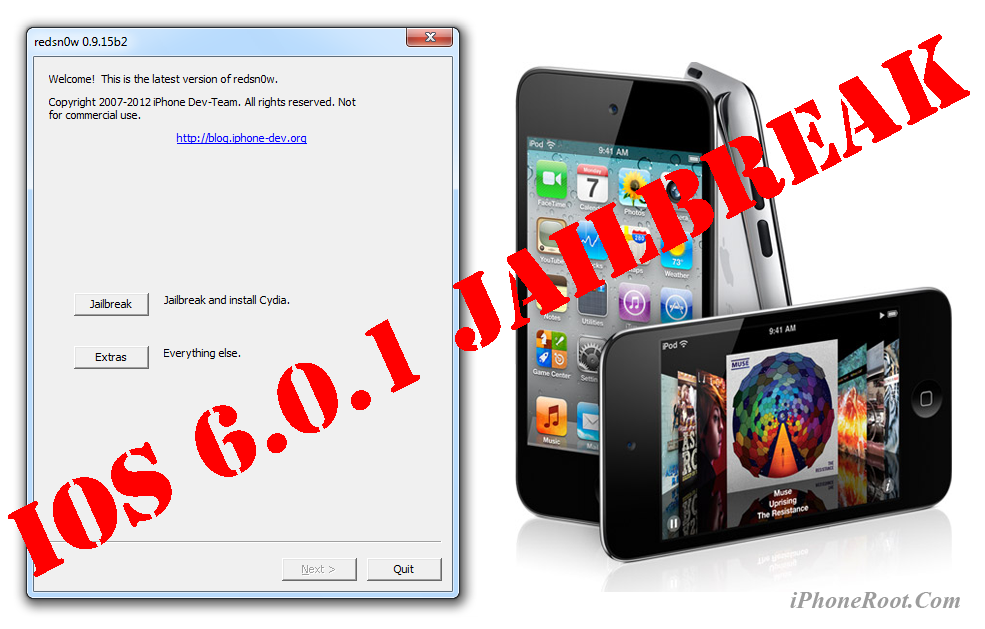
Данное пошаговое руководство позволит вам сделать привязанный джейлбрейк iPod Touch 4G на iOS 6.0.1 с помощью утилиты RedSn0w 0.9.15 под Windows.
Привязанный джейлбрейк означает то, что при каждой перезагрузке устройства потребуется его подключение к компьютеру и загрузка с помощью redsn0w (шаг 12).
Важно: Мы советуем вам прочитать наше руководство по выбору утилиты джейлбрейка и ответы на часто задаваемые вопросы, если у вас другое устройство или прошивка и особенно если у вас возникли вопросы или трудности.
Важная информация:
Обязательно (!) думайте перед тем, как что-нибудь сделать. Читайте внимательно и еще раз думайте. Не понятно - читайте снова. Спрашивайте до, а не после.
Если у вас прошивка iOS 5.1.1, возможно, не стоит обновляться, для нее существует отвязанный джейлбрейк.
Шаг 1
Создайте на компьютере папку "Pwnage".
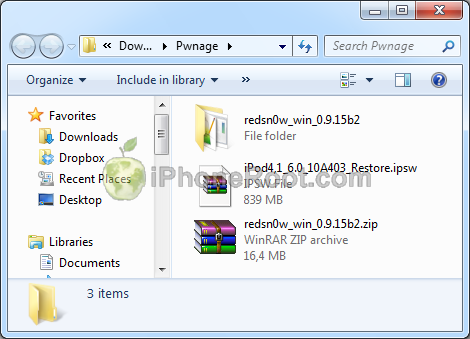
1. Скачайте в папку Pwnage последнюю версию утилиты RedSn0w 0.9.15 отсюда. Распакуйте redsn0w из файла RedSn0w.zip в тот же каталог.
2. Скачайте в папку Pwnage официальную прошивку iPod Touch 4G iOS 6. Да, именно iOS 6, а не iOS 6.0.1. Лучше качать с помощью Firefox, так как некоторые браузеры, например, Safari, распаковывают прошивку:
- iPod Touch 4G iOS 6:
Шаг 2
Подсоедините iPod Touch к компьютеру и загрузите iTunes.

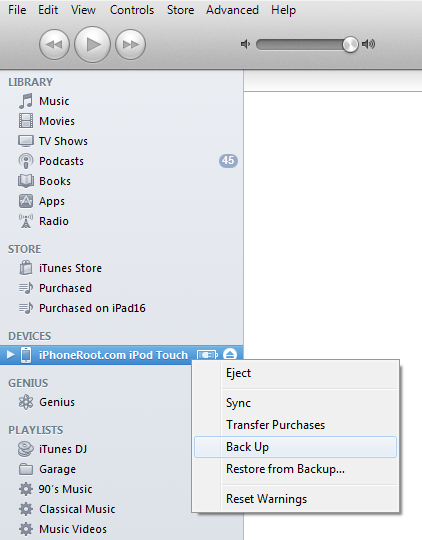
Сделайте резервную копию. Выберите ваш iPod Touch слева. Сделайте резервную копию, кликнув правой клавишей мыши на значке устройства и выбрав Back Up.
Если у вас уже версия прошивки iOS 6.0.1, можете переходить к шагу 3.
Скачайте официальную прошивку iPod Touch 4G iOS 6.0.1. Лучше качать с помощью Firefox, так как некоторые браузеры, например, Safari, распаковывают прошивку:
- iPod Touch 4G iOS 6.0.1:

Откройте iTunes и нажмите одновременно на клавиатуре клавишу Option (Mac) или Shift (Windows) и кликните на кнопку Restore.

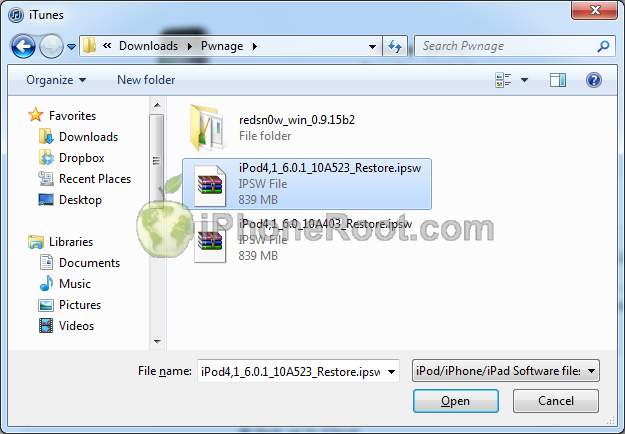
Перейдите в папку Pwnage и выберите скаченную прошивку iOS 6.0.1. Затем нажмите клавишу Open.
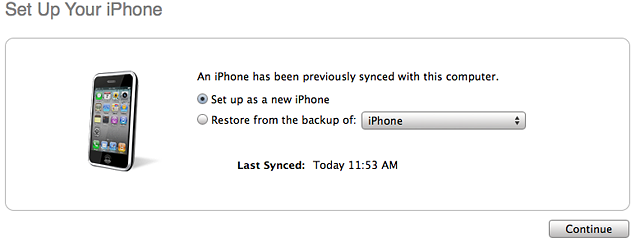
iTunes спросит, хотите ли вы использовать iPod Touch как новое устройство или восстановить данные из резервной копии. Следует выбрать Restore from Backup, если вы хотите сохранить ваши прежние настройки.
Шаг 3
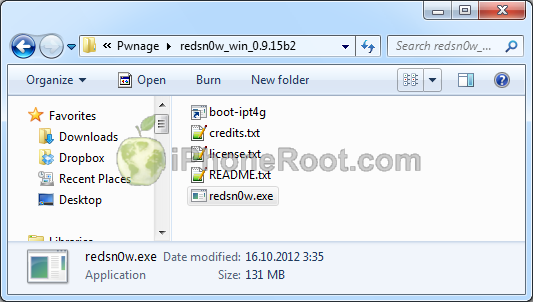
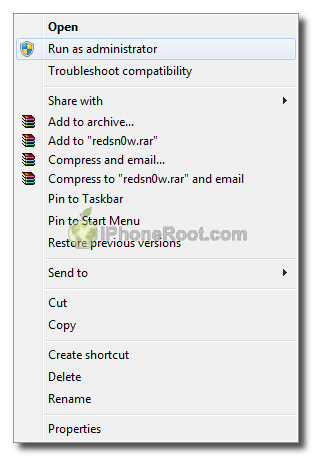
После того, как iTunes закончил обновление прошивки в iPod Touch, откройте папку Pwnage/redsn0w и запустите приложение redsn0w: правой клавишей кликните на redsn0w.exe и запустите приложение от администратора.
Шаг 4
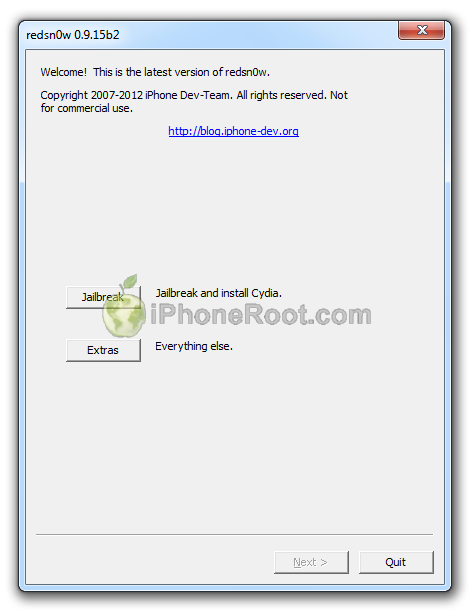
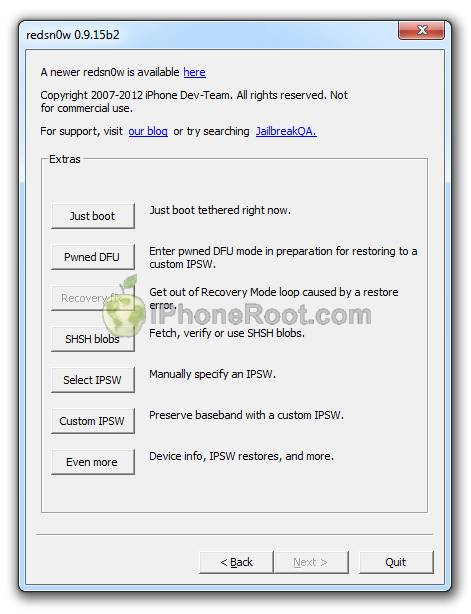
После запуска RedSn0w нажмите кнопку Extras.
Нажмите кнопку Select IPSW (пятая в списке).
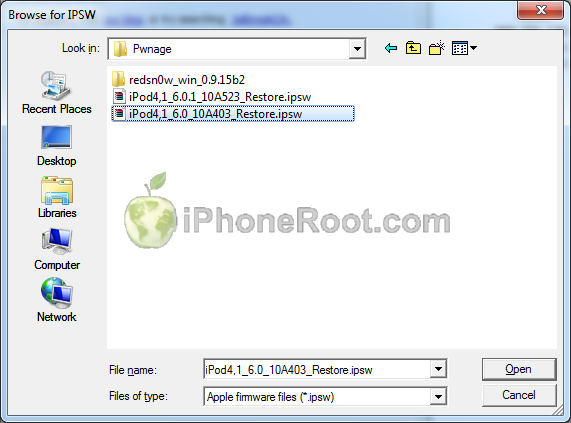
В появившемся окне перейдите в папку Pwnage и выберите скаченную прошивку iOS 6.0 (именно 6.0, а не 6.0.1). Затем нажмите клавишу Open.
Появится окно, сообщающее о том, что прошивка принята приложением. Если выскочит ошибка, значит файл прошивки битый и надо скачать заново, либо вы указали по ошибке прошивку 6.0.1 вместо 6.0.
Просто нажмите OK.

Затем нажмите кнопку Back, чтобы вернуться в главное меню.
В главном меню нажмите кнопку Jailbreak.
Шаг 5
RedSn0w подготовится к джейлбрейку.
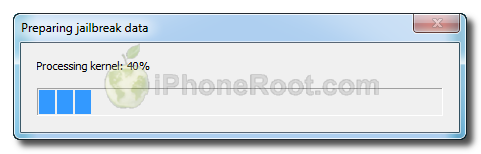
Шаг 6
Теперь вы можете выбрать опции джейлбрейка.
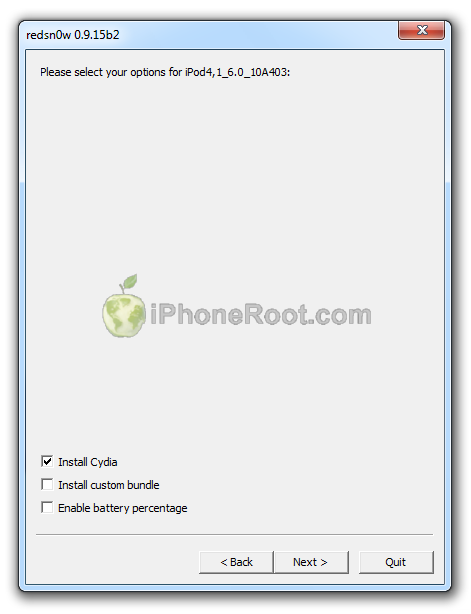
Убедитесь, что выбрана установка Cydia.
Жмите кнопку Next.
Шаг 7
Если iPod Touch еще не подключен, то подключите его к компьютеру. Выключите iPod Touch. Затем жмите Next.
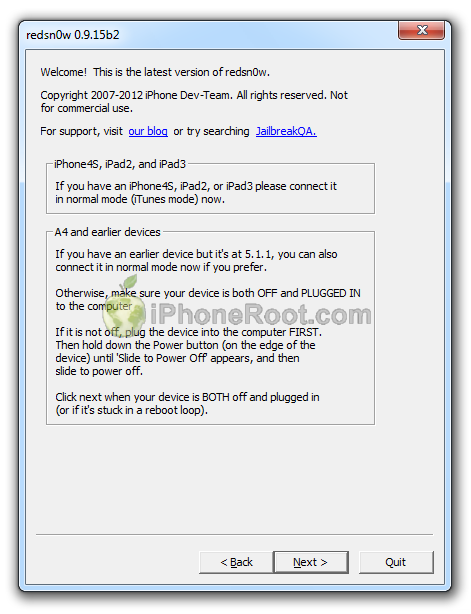
Шаг 8
RedSn0w выдаст рекомендации для перевода iPod Touch в режим DFU.
1. Нажмите и удерживайте кнопку питания (сверху с торца) 3 секунды.
2. Нажмите и удерживайте кнопку питания (сверху с торца) и кнопку Home (снизу круглая) в течение 10 секунд.
3. Затем отпустите кнопку питания, продолжая удерживать кнопку Home в течение 15 секунд.
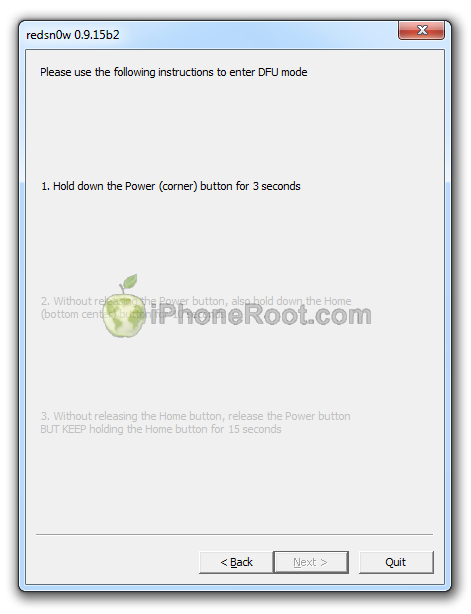
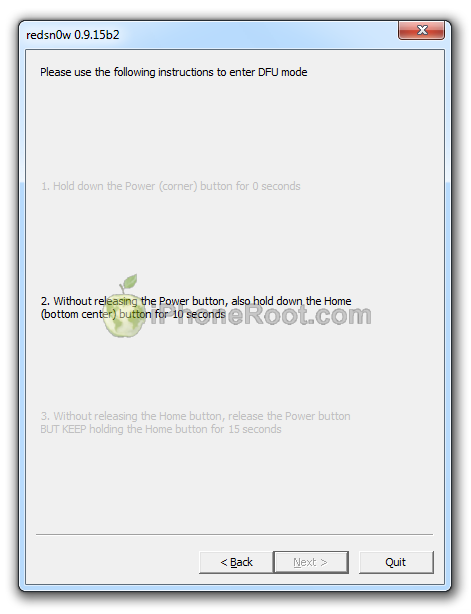
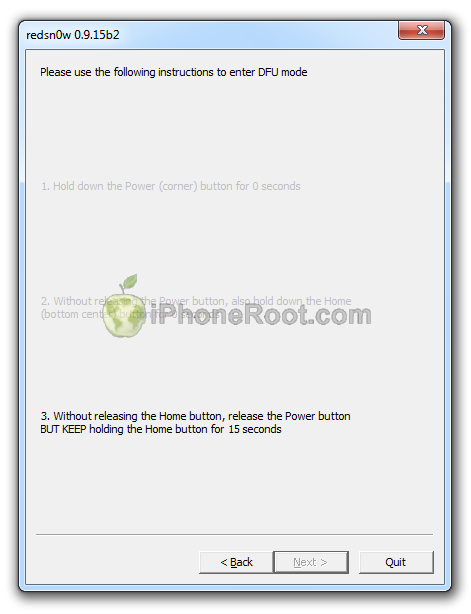
Если не получилось - попробуйте заново.
Шаг 9
iPod Touch будет перезагружен и redsn0w начнет процесс джейлбрейка.
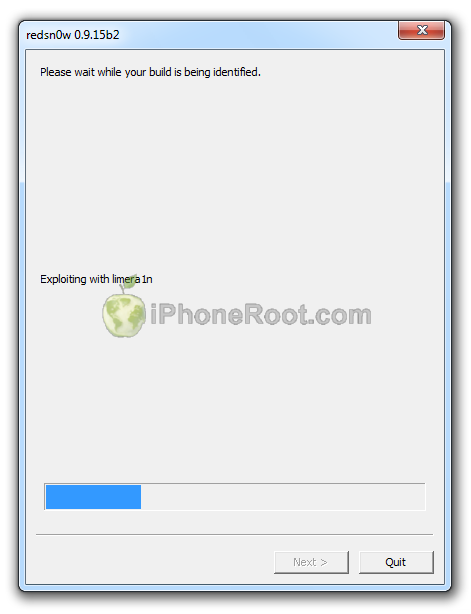
Шаг 10
Затем RedSn0w начнет джейлбрейк, загрузит RAM Disk и Kernel.
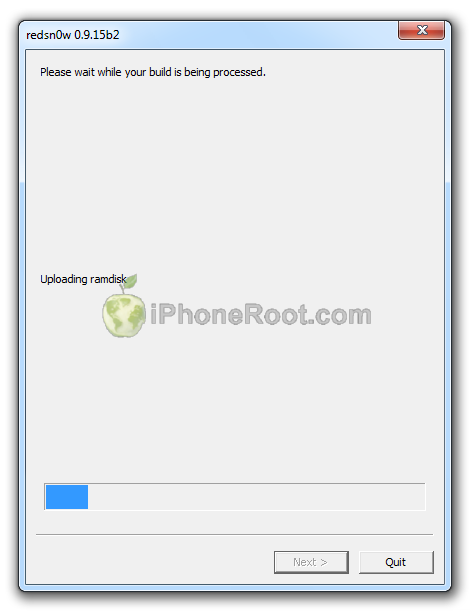
Шаг 11
После того, как процесс джейлбрейка закончится, будет показано сообщение, что джейлбрейк привязанный (нажмите ОК).
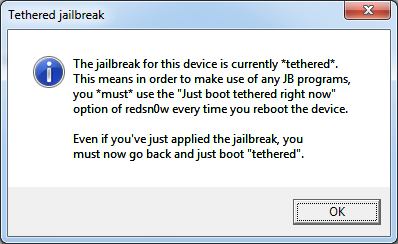
Redsn0w закончил работу.
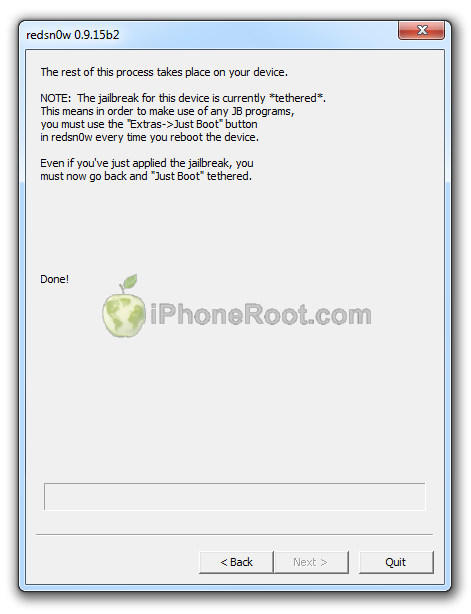
Шаг 12: BOOT TETHERED
Теперь вам необходимо запустить iPod Touch. Так как джейлбрейк привязанный, вам придется делать это каждый раз при перезагрузке устройства.
Запустите RedSn0w и в этот раз нажмите кнопку Extras.
Нажмите кнопку Just boot (первая в списке).
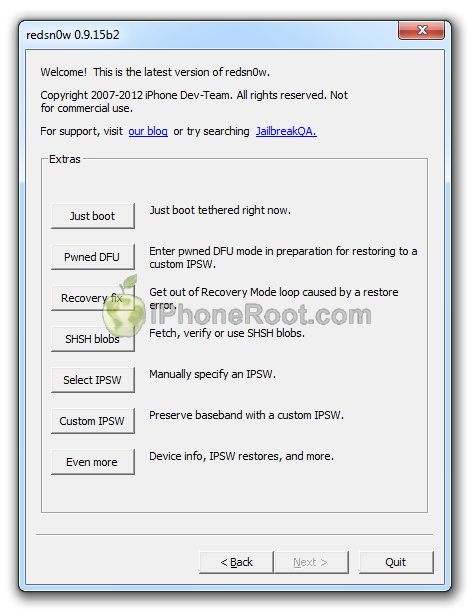
Следуйте инструкциям по переходу в режим DFU (аналогично шагам 5 и 6):
Подключите iPod Touch к компьютеру и выключите его. Затем жмите Next.
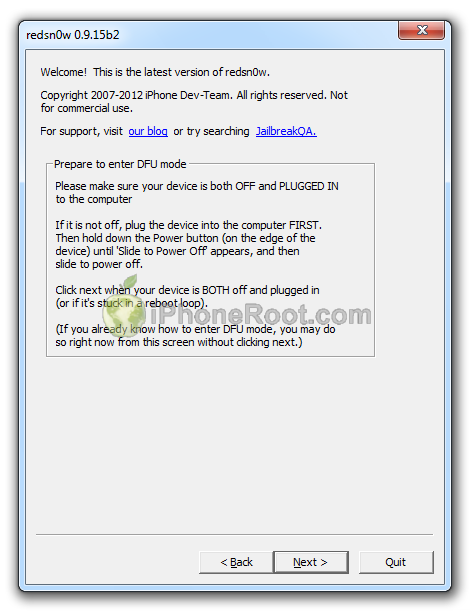
1. Нажмите и удерживайте кнопку питания (сверху с торца) 3 секунды.
2. Нажмите и удерживайте кнопку питания (сверху с торца) и кнопку Home (снизу круглая) в течение 10 секунд.
3. Затем отпустите кнопку питания, продолжая удерживать кнопку Home в течение 15 секунд.
Если не получилось - попробуйте заново.
Если возникают проблемы или сообщения типа "unrecognized..." - сделайте выбор прошивки iOS 6 в Extras->Select IPSW, а затем попробуйте снова шаг 12 Boot Tethered.
Теперь ваш iPod Touch джейлбрейкнут и запущен.
Шаг 13
Запустите Cydia и дайте ей установить обновления. Если будет задан вопрос "Who are you?" cмело выбирайте Developer (при желании потом можно будет поменять в Manage-Settings). Возможно потребуется перезагрузка и снова шаг 12.
Шаг 14
Если вы хотите пользоваться пиратскими приложениями, вам необходимо установить пакет AppSync (для этого требуется доступ в интернет):
- Запустите Cydia.
- Перейдите в Manage -> Sources.
- Нажмите кнопку Edit (верхний правый угол), затем Add (верхний левый угол), введите адрес репозитория http://irooter.ru/ и нажмите Add Source.
- Затем жмите Return to Cydia и Done.
- В поиске найдите и установите пакет AppSync 5.0+
- Потребуется перезагрузка и снова шаг 12.
Если после этого приложения не устанавливаются то:
- Удаляем AppSync 5.0+
- Запустите Cydia
- Перейдите в Manage -> Packages
- Кликнитк на пакете AppSync for IOS 5.0+
- Нажмите кнопку Modify (сверху справа), затем Remove.
- После удаления пакета, возможно, потребуется перезагрузка и снова шаг 12.
- Установить пакет afc2add.
- С помощью iFunBox (на компьютере) или приложения iFile (на iPod Touch) удалить файл applicationstate.plist и папку PushStore из /var/mobile/Library/SpringBoard/.
- Установить AppSync 5.0+ заново по шагу 14.
Шаг 15
Пишем спасибо в комментах.
Читайте нас в :
Последние новости
 Оставить комментарий, читать комментарии [49]