 iPhoneRoot.com

Пошаговая инструкция: отвязанный джейлбрейк iOS 4.2.1 на iPhone, iPod или iPad с помощью Greenpois0n для Windows

Update Всем советую обновляться на iOS 4.3.3 (для кого есть) и использовать Redsn0w 0.9.6 rc16 (Win/Mac) или Pwnagetool 4.3.3.1 (Mac) или Sn0wBreeze 2.7.3 (Windows).
Это пошаговое руководство по джейлбрейку iOS 4.2.1 на iPhone 3GS, iPhone 4, iPad, iPod Touch 2G, iPod Touch 3G, iPod Touch 4G с помощью утилиты Greenpois0n под Windows. Руководство для пользователей Mac OS X читайте здесь. Все шаги одинковы для всех устройств, мы рассмотрим на примере iPhone.
Последняя версия Greenpois0n поддерживает прошивки iOS 4.1 и iOS 4.2.1. Для iOS 4.0, iOS 4.0.1, iOS 4.0.2 используйте limera1n или redsn0w.
Перед использованием Greenpois0n рекомендуется сделать чистый рестор.
Для тех, кому нужен анлок: не обновляйтесь на iOS 4.1 или iOS 4.2.1. Вам необходимо сохранить baseband. Это не касается только iPhone 4. Продвинутые пользователи могут попытаться обновиться до iOS 4.2.1 с сохранением baseband с помощью TinyUmbrella (Start TSS Server->Start iTunes->Plug in your iPhone->Restore 4.2.1->Error 1013->Put phone into DFU Mode->Launch Greenpois0n).
Мы не являемся авторами утилиты и не можем обещать, что у вас все получится. Используйте на свой страх и риск. Мы не несем ответственности за кирпичи.
Если что-то не поятно - спрашивайте в комментариях.
UPDATE: Мы советуем вам прочитать наше руководство по выбору утилиты джейлбрейка и ответы на часто задаваемые вопросы, особенно если у вас возникли вопросы или трудности.
Шаг 1
Откройте браузер на компьютере и скачайте последнюю версию GreenPois0n для Windows отсюда.
Шаг 2
Сохраните архив на рабочий стол.
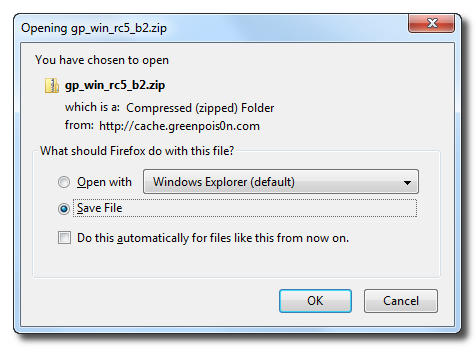
Шаг 3
Дважды щелкните по скачанному файлу gp_win_rc5_b2.zip, затем перетащите greenpois0n.exe на рабочий стол. Затем дважды щелкните по иконке greenpois0n, чтобы запустить приложение.
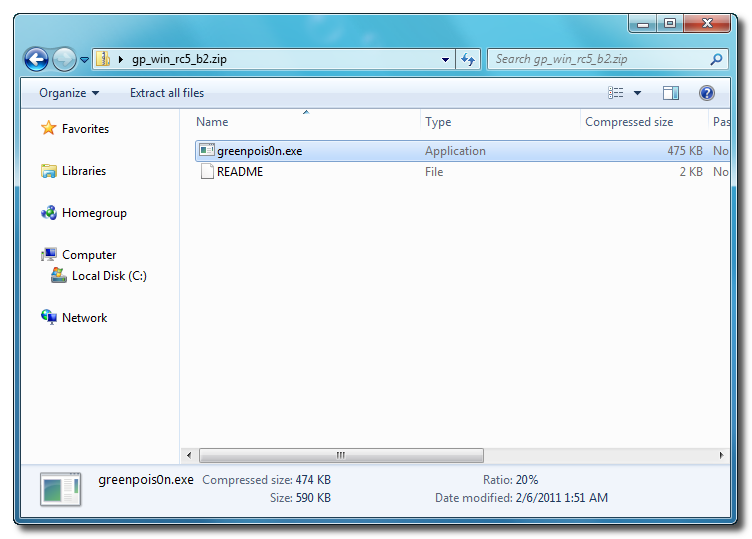
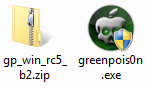
Шаг 4
Подсоедините iPhone к компьютеру (лучше использовать оригинальный шнур и подсоединить его напрямую к USB порту, а не через хаб). Выключите iPhone.
Нажмите большую кнопку Prepare to Jailbreak (DFU) в приложении greenpois0n.
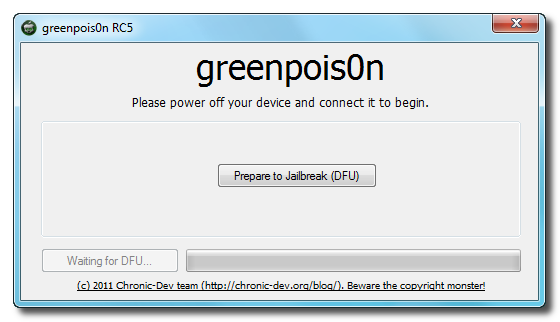
Шаг5
Вы будете проинструктированы перевести iPhone в режим DFU.

Нажмите и удерживайте 3 секунды кнопку питания (та, что сверху).

Не отпуская кнопку питания, нажмите и удерживайте кнопку Home (круглая снизу) в течение 10 секунд.

Отпустите кнопку питания, но продолжайте удерживать кнопку Home. Не отпускайте Home!

Шаг 6
После того, как iPhone перейдет в DFU режим, нажмите большую кнопку Jailbreak. Нужно продолжать удерживать кнопку Home.

Шаг 7
Начнется процесс джейлбрейка.

После того, как Greenpois0n сообщит об окончании джейлбрейка, вы можете отпустить кнопку Home.
Нажмите кнопку Quit, чтобы закрыть приложение.
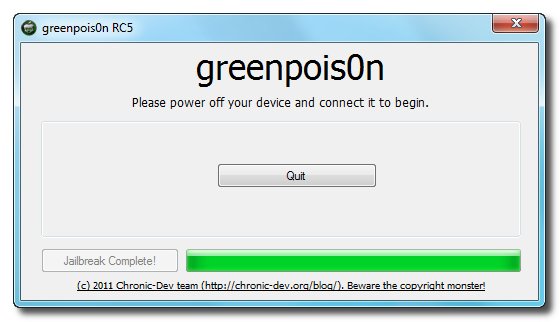
На айфоне побегут строчки текста - это нормально
Шаг 8
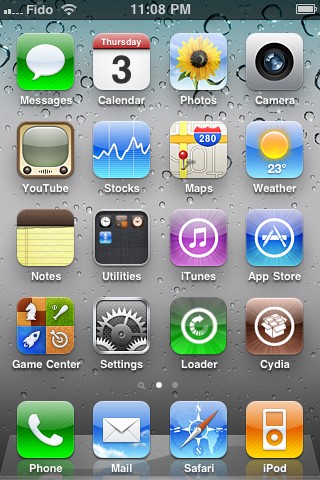
После загрузки iPhone, вы увидите, что появилось новое приложение Loader. Запустите его.
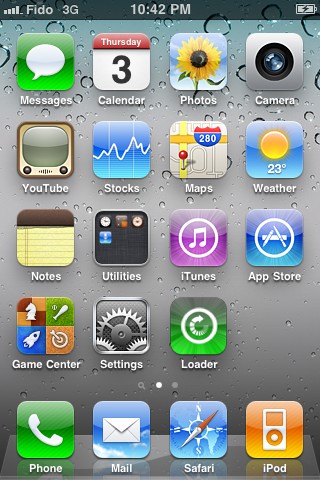
Шаг 9
Необходимо выбрать Cydia и нажать большую кнопку Install Cydia. Cydia будет загружена через интернет. Таким образом, вам понадобится соединение с интернет через wi-fi или сотового оператора (edge/3g).
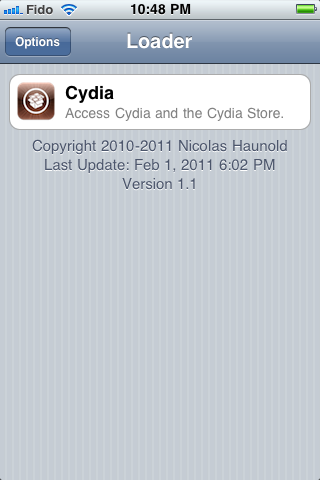
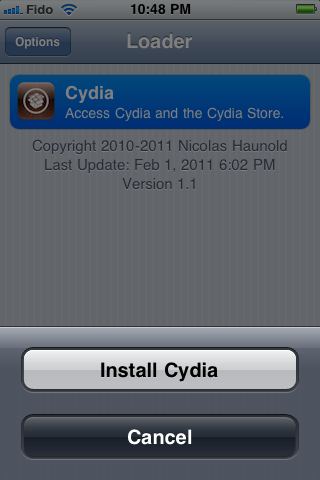
Шаг 10
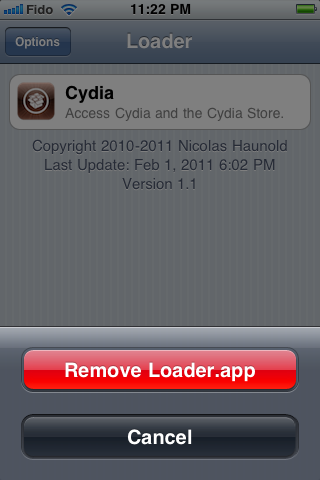
После установки Cydia, вы можете удалить Loader - нажмите кнопку Options и затем кнопку Remove Loader.app.

Шаг 11
Перегрузите ваш iPhone и запустите Cydia. Установите предложенные обновления.
Готово!
Update: Чтобы изменить череп при загрузке обратно на яблоко: поставьте пакет Apple Boot Logo в Cydia, затем зайти в в Settings-BootLogo и установить Apple Logo.
Читайте нас в :
Последние новости
 Оставить комментарий, читать комментарии [396]