 iPhoneRoot.com

Step-by-step Tutorial: How to Untether Jailbreak and Unlock iPhone 3GS Using RedSn0w 0.9.10 (Windows) [iOS 5.0.1]
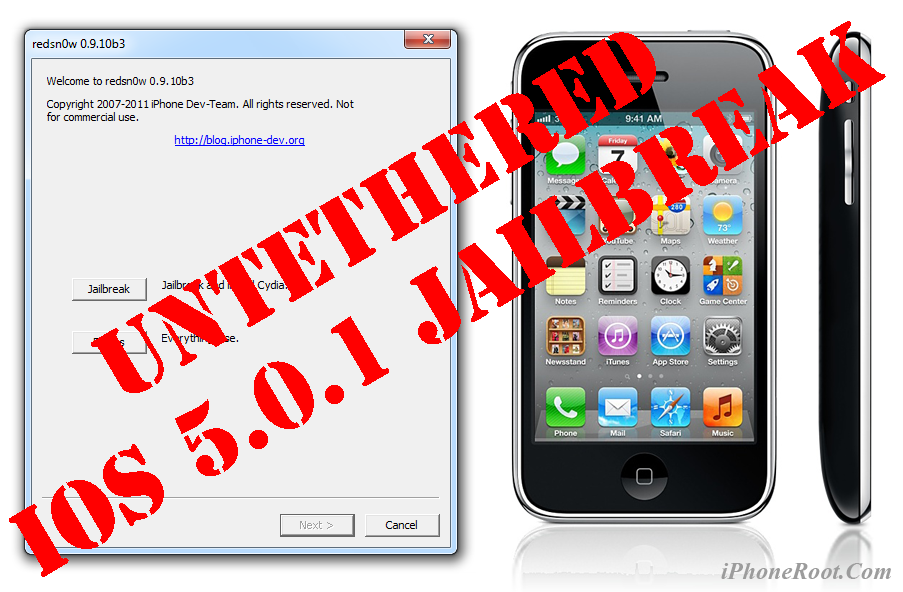
UPDATE: Apple released iOS 5.1 that is only tethered jailbreakable with redsn0w. Apple has stopped signing iOS 5.0.1, so you can NOT restore to 5.0.1 any more (both original and custom), unless you have saved your SHSH keys for 5.0.1. If you are on 5.0.1 you can jailbreak with redsn0w.
This is step-by-step instructions on how to perform untethered jailbreak of your iPhone 3GS on iOS 5.0.1 firmware using RedSn0w 0.9.10 for Windows.
Untethered jailbreak means that each time you restart your device you will NOT need to connect it to a computer and run utilities.
Important: If you need unlock and have 05.13 baseband or lower - do not update to Apple firmware, use RedSn0w or Sn0wBreeze to create custom firmware!
If you need unlock Redsn0w will provide you with choice of updating your baseband to 06.15. If you have new iPhone 3GS that was made after 35 week of 2011 upgrading modem will not help to unlock.
Important: Please, consider reading our Jailbreak & Unlock FAQ, if you have other device or firmware and especially if you have questions or troubles.
Important information.
Please think first, before you do something.
If you need carrier unlock - do not update to iOS 5.x firmware, use RedSn0w or Sn0wBreeze to create a custom firmware to preserve modem version!
Step One
Create a folder on your desktop (or any other folder on your computer) called Pwnage
Download the latest version RedSn0w 0.9.10b3 from here. Save it in the Pwnage folder.
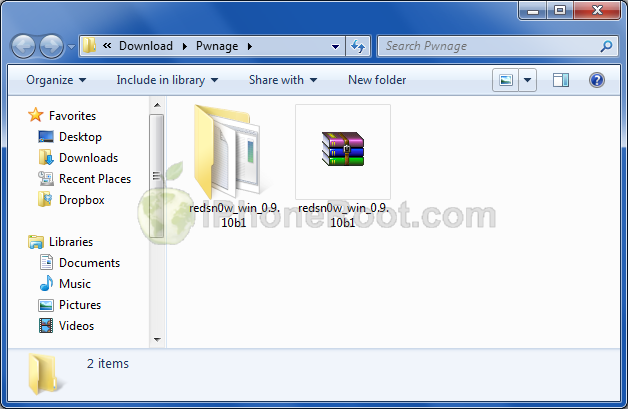
Extract the redsn0w executable from the RedSn0w zip file into the same folder.
Step Two
Connect your iPhone 3GS to the computer and launch iTunes.

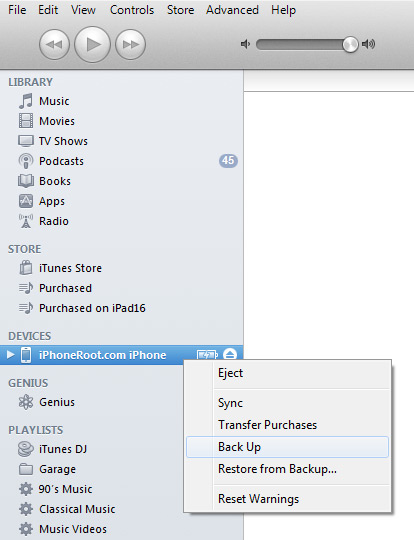
Select your iPhone from the list of devices on the left. Create a backup by right-clicking on iPhone name in Devices (iTunes left pane) and choosing Back Up.
If you are already on iOS 5.0.1 you can now skip to step three.
Download iPhone 3GS firmware iOS 5.0.1 to Pwnage folder. It is better to use Firefox, because some browsers (f.e., Safari) extract ipsw:
- iPhone 3GS iOS 5.0.1:

Open iTunes. Now hold down Option (Mac) or Shift (Windows) key and click the Restore button.
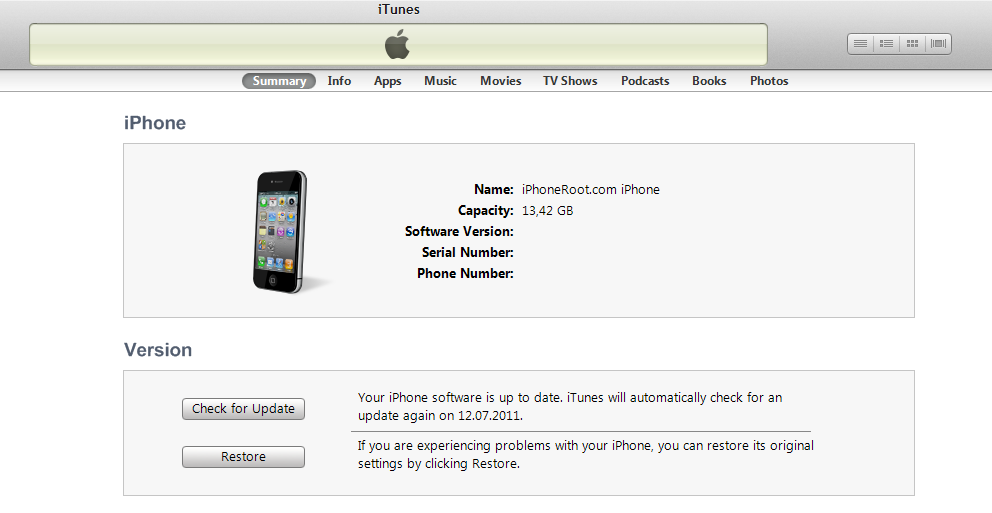
Navigate to the Pwnage folder on your desktop and select the iOS 5.0.1 firmware ipsw. Click the Open button to continue.

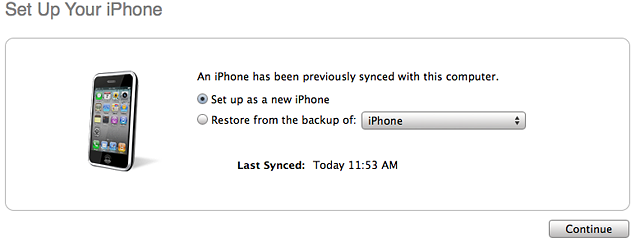
iTunes will ask if you want to setup your iPhone as a new device or restore from the backup. Choose Restore from Backup if you want to preserve your contacts and other information.
Step Three
Once iTunes has finished updating your iPhone 3GS to the desired firmware open the Pwnage folder on your desktop and launch the redsn0w application from the redsn0w folder we extracted earlier.
On Windows Vista or Windows 7 right click the executable and set it to run as administrator in Windows Vista/XP compatibility mode.
Step Four
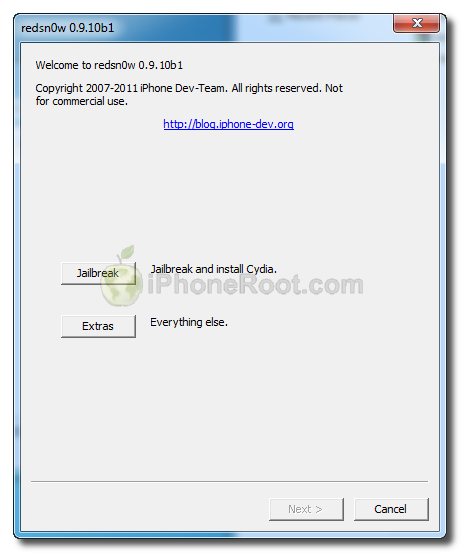
Once RedSn0w opens click the Jailbreak button
Step Five
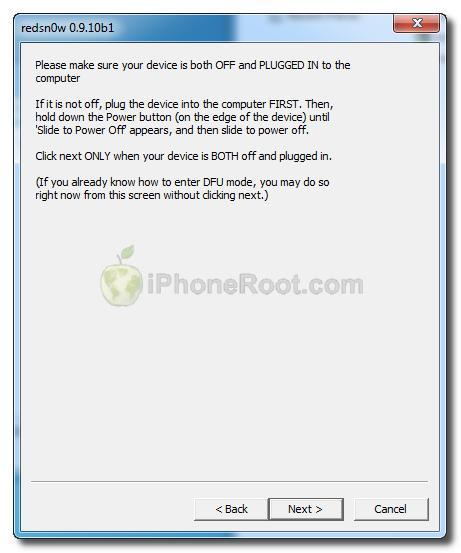
Please plug your iPhone 3GS into the computer and make sure its OFF then click the Next button
Step Six
RedSn0w will now guide you through the steps to get into DFU mode.
1. Hold down Power button for 3 seconds.
2. Without releasing Power button, hold down both the Home button and the Power button for 10 seconds.
3. Release the Power button and continue holding the Home button until RedSn0w detects the device (~15 seconds).
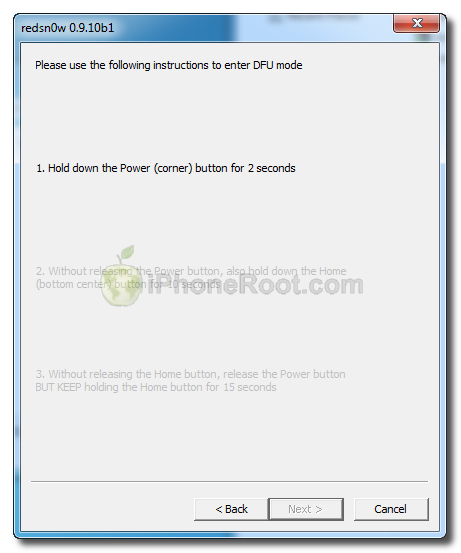
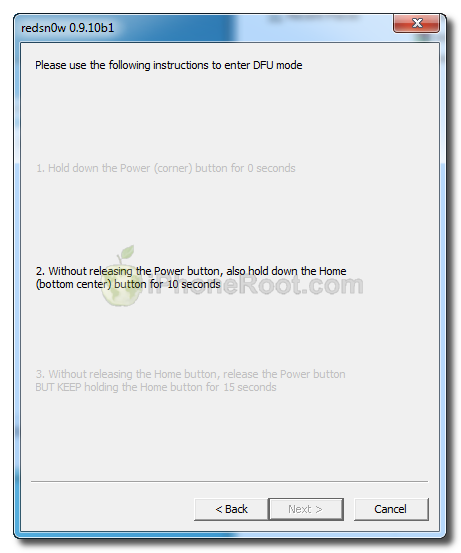
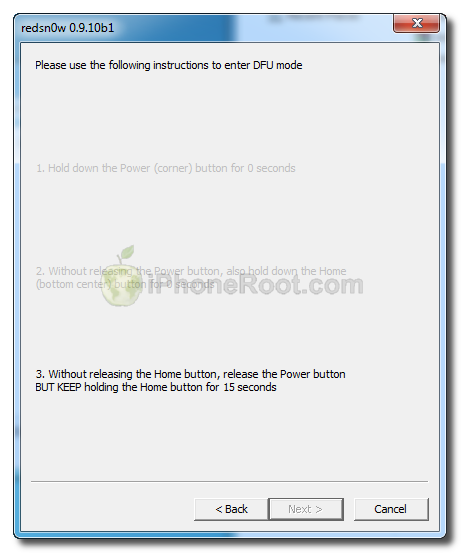
If you have problems try again.
Step Seven
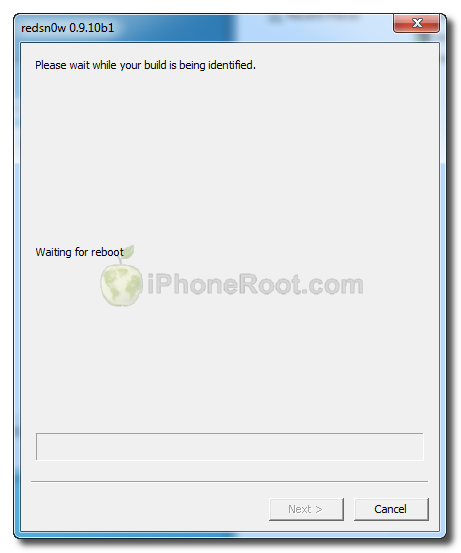
iPhone 3GS will reboot and redsn0w will identify the firmware version.
Step Eight
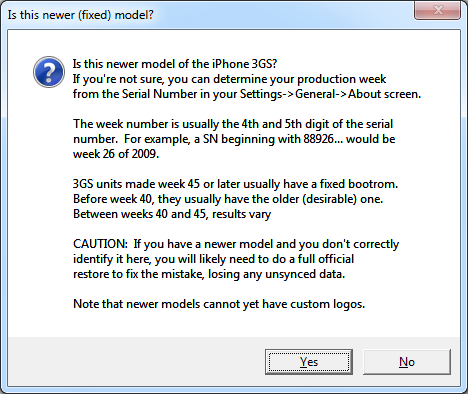
Redsn0w might ask if you have new or old bootrom version. You can detect your bootrom version using our tutorial.
Answer YES, if you have iPhone 3GS with new bootrom.
Answer NO, if you have iPhone 3GS with old bootrom.
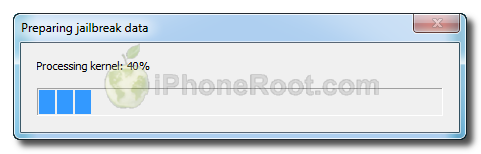
RedSn0w will now prepare the jailbreak data.
Step Nine
From this window you can select the jailbreak options you would like.
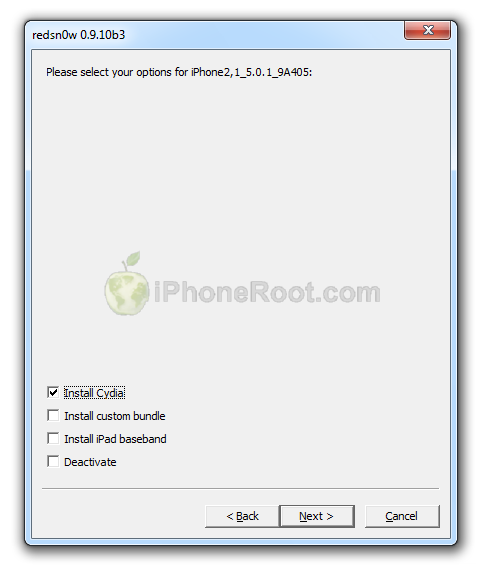
Make sure Cydia is selected.
You can update your baseband to the 06.15 version for carrier unlock. If you are on 05.14 or 05.15 or higher you will need to do this to unlock. You do not need to do this for jailbreak only. Please read the following very carefully before deciding whether to do this.
- There is no way to come back down from baseband 06.15, and there’s no hiding the baseband version from Apple. You’ll be voiding your warranty in a very obvious way.
- If some future baseband comes out with a critical fix, you won’t be able to update to it if it remains down in the 05.xx sequence (then again, you wouldn’t update to it if you wanted to keep your unlock anyway).
- If you have 06.15 on your iPhone you won’t ever be able to restore to stock firmware (it will fail). You’ll need to only restore to custom IPSWs (then again, if you’re unlocker you should already be doing that).
- You might get problems with GPS, if you install 06.15 baseband.
Don’t update to 06.15 if you don’t need to, you can just jailbreak without unlocking using this tutorial! Only update baseband if you need the unlock and you’re stuck on baseband version 05.14 or 05.15, and you’re willing to assume the above risks. You can find out your baseband version in Settings -> General -> About -> Modem Firmware.
If you have read all above and want to update your modem to 06.15 select Install iPad Baseband.
Click the Next button to continue
Step Ten
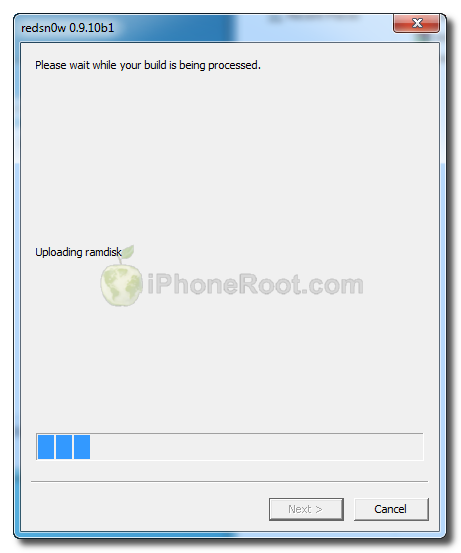
RedSn0w will then begin uploading the new RAM Disk and Kernel.
Step Eleven
Once this is complete you will be notified that RedSn0w is done.
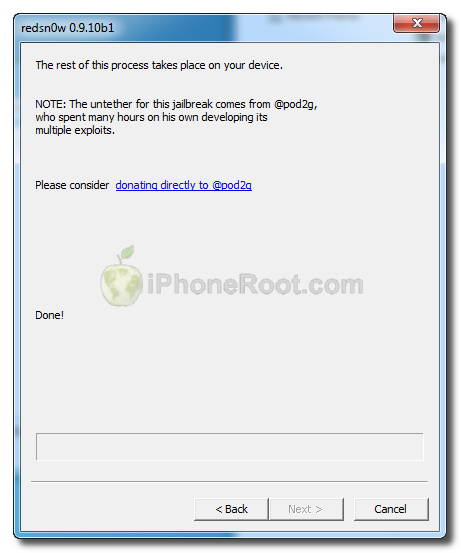
When your iPhone 3GS finishes rebooting (5 minutes or so) it will be jailbroken with Cydia installed on the SpringBoard.
Step Twelve
Run Cydia. Let it do all the necessary updates.
Step Thirteen
To have access to the root file system of your iPhone (via file managers like iFunBox or iPhone Explorer) install application called afc2add in Cydia.
Step Fourteen
Do not forget to change your default password if you've installed openssh.
Step Fifteen
If you need carrier unlock – install ultrasn0w via Cydia (if you do not need carrier unlock skip this step).
Ultrasn0w supports iPhone 4 baseband 01.59.00 and iPhone 3G/3GS basebands 04.26.08, 05.11.07, 05.12.01, 05.13.04, 06.15.00.
- Open Cydia.
- Go to Manage than click Sources.
- If you see repository http://repo666.ultrasn0w.com, go to step 8.
- Click Edit button in the top right corner.
- Then click Add button in the top left corner.
- Type http://repo666.ultrasn0w.com and click Add Source.
- Then click Done.
- Click on on newly created repository http://repo666.ultrasn0w.com.
- Click on ultrasn0w and hit Install button in the top right.
- One installed, restart your iPhone.
- Disable 3G on T-Mobile USA.
- You're done! You should see the network.
Follow us on :
Latest posts
 Leave a comment, read comments [470]