 iPhoneRoot.com

How to backup your SHSH blobs using TinyUmbrella for Mac OS

Every time Apple releases a new firmware it stops the ability to restore to an older firmware. If you need to restore to old firmwares you need to save your SHSH keys as soon as possible.
Here are instructions on how to backup your SHSH blobs using TinyUmbrella utility for Mac OS.
Step One
Download the latest version of Firmware Umbrella from to your Desktop.
Step Two
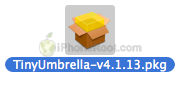
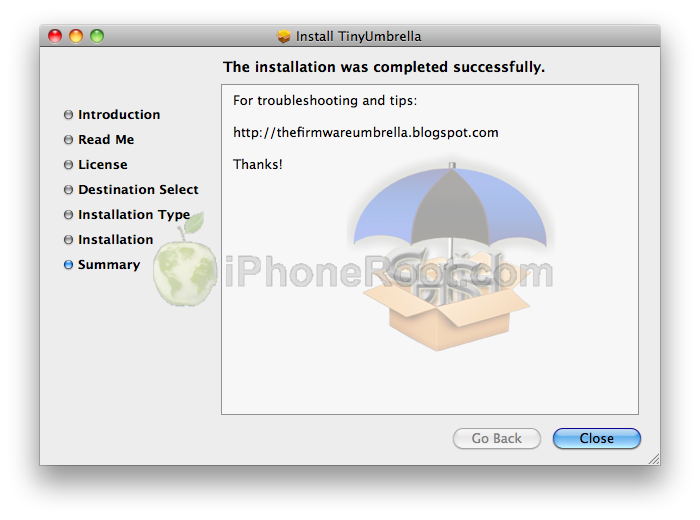
Double click the downloaded TinyUmbrella.pkg file then follow the prompts to install the application.

Step Three
Connect your iPhone to the computer and double click the TinyUmbrella icon in your Applications folder to launch the program.

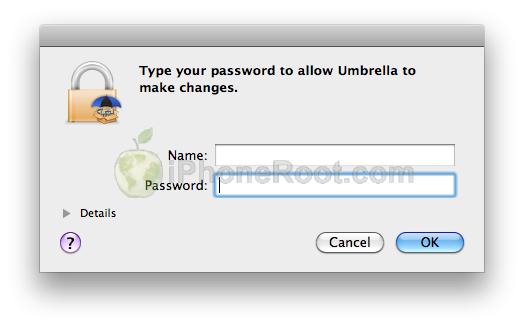
If asked, enter your administrative username and password.
Step Four
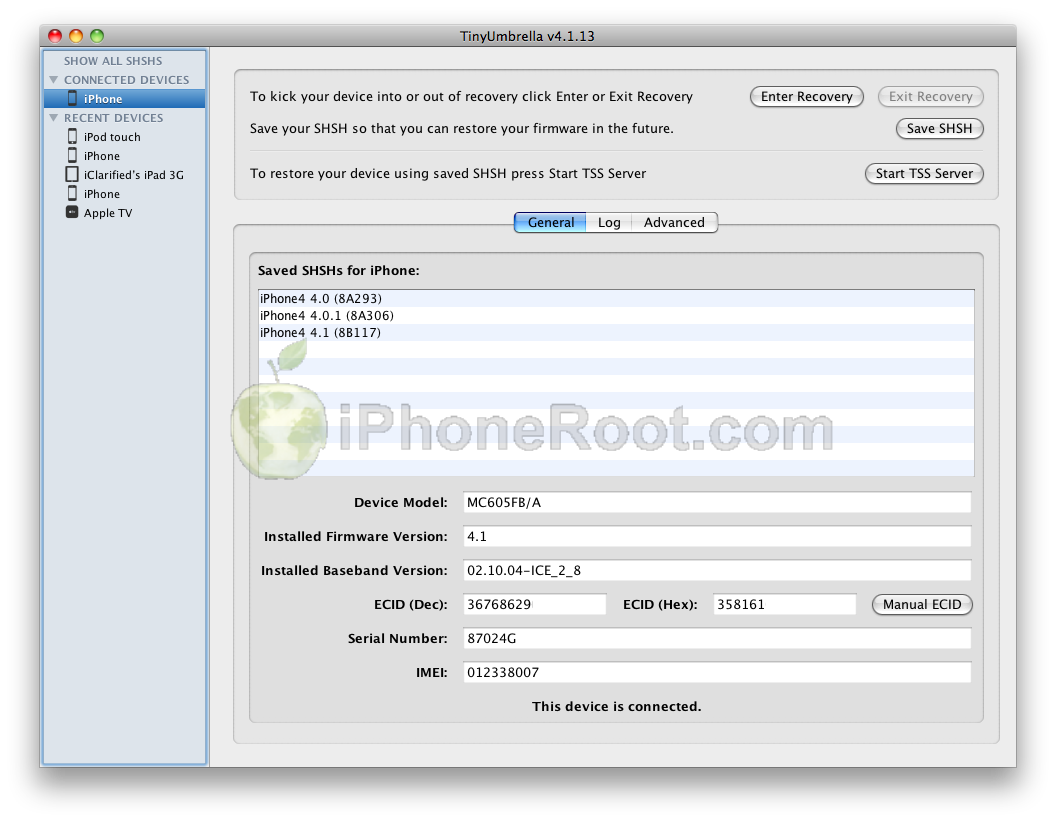
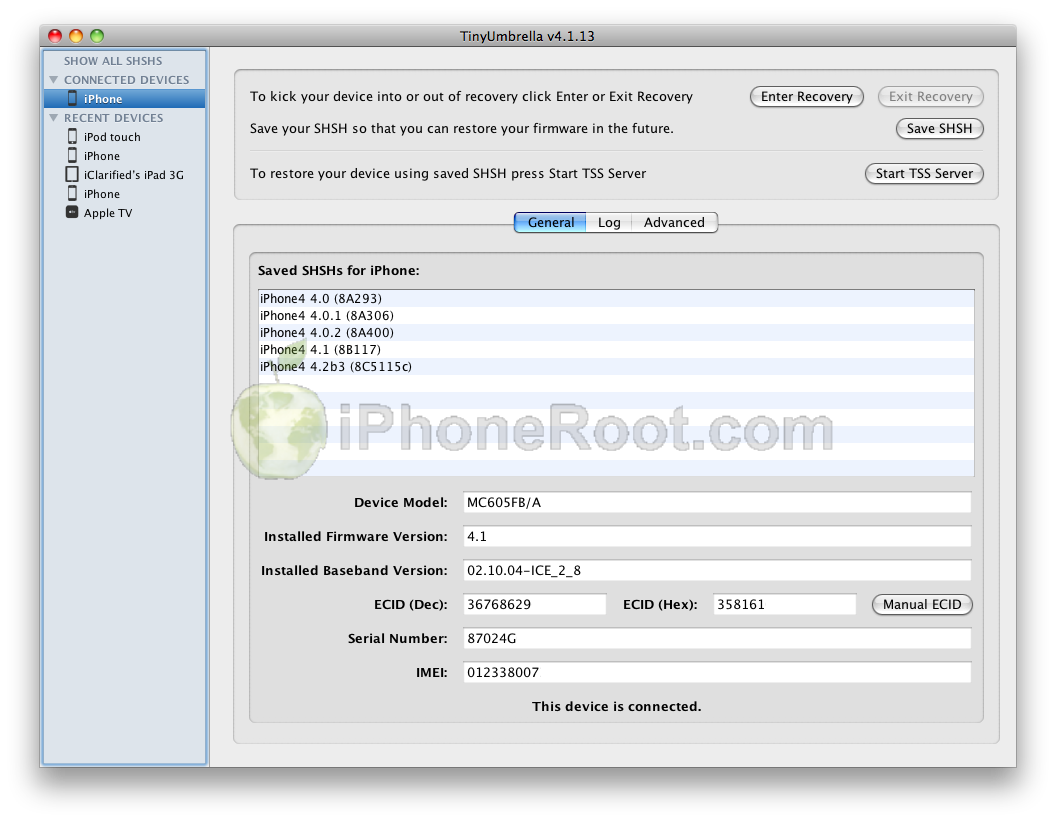
Make sure your iPhone is selected from the list on the left, then click the Save SHSH button.
Step Five
Once completed you will notice a new entry in the Saved SHSHs for iPhone list confirming the successful save of your SHSH blobs.
Follow us on :
 Leave a comment