 iPhoneRoot.com

News from category ‘Tutorial’
CNet Video: HowTo Jailbreak iPhone and turn on FaceTime over 3G
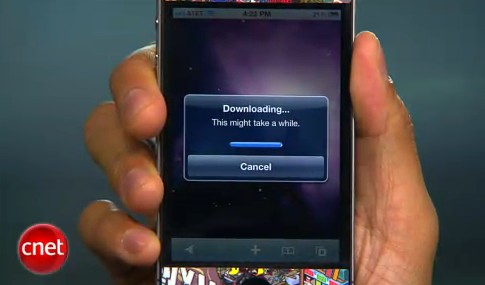
CNet specialists will show how to jailbreak using and how to turn on FaceTime over 3G (out tutorial is available here):
CNet Video: Howto downgrade iPhone 3G from iOS 4
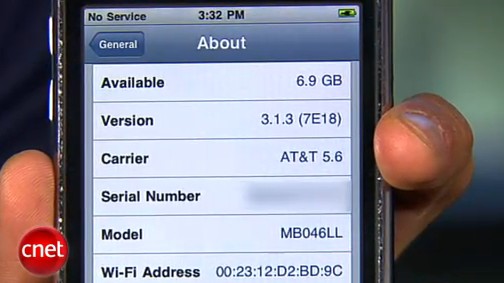
So you upgraded your iPhone 3G to firmware iOS 4 (or 4.0.1) and you want version 3.1.3 back? CNet specialists will show us how to do it:
 Leave a comment, read comments [2]
iPhone 4 FaceTime video call over 3G is now possible
FaceTime feature gives users the possibility to make voice calls. Apple restricted this feature to Wi-Fi only. Today it became possible to use it over 3G!

Setup Instructions:
- Jailbreak your iPhone 4 via .
- Download and upgrade to the latest Cydia package.
- Open Cydia, Go to Manage then Sources.
- Click Sources, Edit then add: http://apt.modmyi.com
- Search for "My3G" -- download, and install it. It costs $2.79. My3G makes Apps believe that they are on WiFi instead of 3G.
- Go through the Rock setup process with a username and password. Open My3G and leave all settings on the default.
- FaceTime should now work over 3G! -- Make sure to "Forget" the WiFi network you are on (via iOS settings) if you want to test it.
We haven't seen any difference between the 3G FaceTime call and a WiFi FaceTime call. The quality is very good.
Here's a video demo:
HowTo speed up your iOS 4 on iPhone 3G and iPod touch 2G
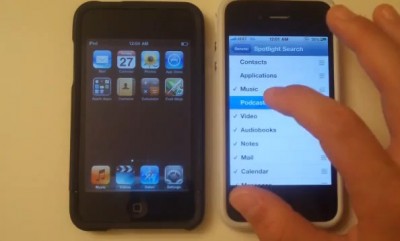
iPhone 3G and iPod Touch 2G work a bit slow with iOS 4. The video below shows a nice trick that will put the speed back in your device. You need to go do Settings and deselect Spotlight.
On iPod Touch 2G go to Settings - General - Home Button - Spotlight Search. On iPhone 3G go to Settings - General - Spotlight Search. Then uncheck all the searches that you don't use. This will increase the speed of your device.
This also works on iPhone 3GS and iPhone 4, however the speed increase is very small there.
Watch the video:
How to jailbreak and unlock iPhone 3G with firmware iOS 4.0.1
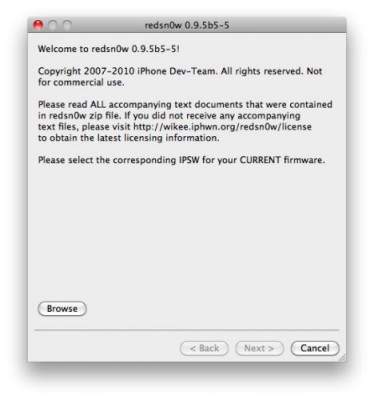
There is no official jailbreak utility for iOS 4.0.1. However you can still jailbreak and unlock iPhone 3G. Just do the following:
- Download the latest RedSn0w 0.9.5-b5 in our utilities page here.
- Download firmware images for iOS 4.0 here.
- Run RedSn0w and point it at the 4.0 IPSW. (Yes – point it at the 4.0 IPSW even though you're at 4.0.1). This will also hacktivate your iPhone3G at 4.0.1 if you haven't already been activated by iTunes.
- Install ultrasn0w in Cydia (add repository http://repo666.ultrasn0w.com) if you need a carrier unlock (and in the USA, remember to turn off 3G mode in Settings→General→Network).
iOS4 Secrets Video (part two)
CNet specialist will talk about data protection, folders and new music playlist feature. Let's watch:
You can watch part one of this here.
iOS4 Secrets Video (part one)
CNet specialists will show us how to turn off cell phone's data, enhance sms experience and couple photo tricks. Let's watch:
Do not forget to take a look at part two.
HowTo turn your iPad into a second monitor for your Mac
Here's a new nice and easy tutorial from CNet specialists. Today they will teach us how to turn an iPad into a second monitor for our Mac. Let's watch:
How To Recover Deleted Photos After Spirit Jailbreak
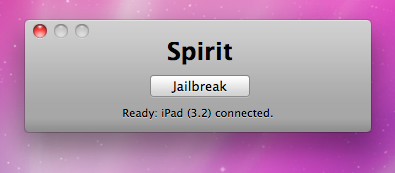
The first release of Spirit had a bug that accidently could delete all of your photos from the device that was jailbroken. If you have a backup which you made before jailbreaking your iPhone/iPod Touch/iPad, here is a quick guide how to recover deleted photos.
Read the rest of this entry »
Tutorial: how to connect external HDD to Apple iPad
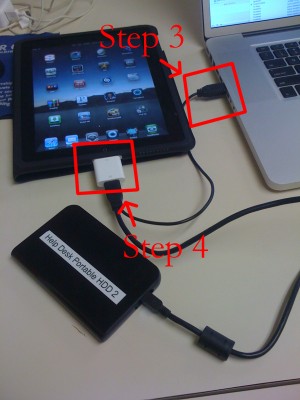
iPad USB Camera Connection Kit is much more useful as it seems. Max Sha, an experienced user, was able to access external hard drive with this kit. All you need is a jailbroken iPad, an external drive, a split-USB cable to give the drive some power and a terminal of some sort (f.e. MacBook) to mount the external storage. While it is a little unwieldy, it shows that Terabytes of external storage for iPad is possible.
Here is a complete step-by-step guide from Max Sha:
JailBreak for iPad is Finally Available!
Finally the jailbreak for iPad, iPhone and iPod Touch from the Dev Team is available for download. It's free and untethered and it's called "Spirit". The jailbreak supports every iDevice with firmware version 3.1.2, 3.1.3 or 3.2.
Leave a comment, read comments [10]
Wireless iPhone Synchronization App Will Be Soon Submitted to Apple
Greg Hughes is a developer who recently created an app for syncing iPhone and iPod Touch with iTunes over Wi-fi. It is called "Wi-Fi Sync" and requires a separate application for desktop so that iTunes could sync the device over Wi-fi. You can see how it works from the video above.
At first launch you need to verify the pairing process on both the computer and the device. After that iTunes will be launched and start to sync with your iPhone/iPod Touch. Everything else will work the same as if the connection was via a USB cable.
Greg plans to submit the app to the App Store in the end of this week. It is unknown whether his software breaks the rules of iPhone OS developer agreement, but if non-public application programming interfaces were used in its development then the app will likely be rejected. Anyway, Wi-fi Sync may also appear in the Cydia jailbroken marketplace, and Greg already considers this idea if his app won't be approved by Apple.
Howto connect a camera to the iPad
Apple iPad doesn't have a built-in camera. However you can connect the iPhone's camera to your iPad using wireless connection. Here's a quick tutorial:
How to personalize and use iPhone Voice Control
Let's learn how to give iPhone contacts phonetic spellings in order to make iPhone Voice Control more useful:
Secure your jailbroken iPhone against worm and hacker attacks

This is quite simple. If you did a jailbreak on your iPhone you need to change the default password. Why? Because hackers can access your phone, read your mail, sms, download other data. The second reason is because there are already several viruses (worms) that use these default passwords.
Here's a quick step-by-step tutorial.
- If you don't have MobileTerminal application installed: for 4.х and 5.x firmwares we have a good step-by-step tutorial, for 3.x just run Cydia, search for MobileTerminal and install.
- Run MobileTerminal.
- Type passwd and press return.
- Enter the default user password alpine and press return.
- Enter a new password and press return.
- Enter a new password again and press return.
- Congratulations, you changed it for default mobile user. Let's do the same for root user.
- Login as root user: type su root and press return.
- Type alpine for password
- Type passwd and press return.
- Enter a new password and press return.
- Enter a new password again and press return.
- That's it!
The passwords are now changed, and your jailbroken iPhone or iPod Touch is now a bit more secure than it was before and less vulnerable to the worm detected recently.
Update: Step-By-Step Tutorial: How to install MobileTerminal on iPhone with iOS 4.x and 5.x
Leave a comment, read comments [38]