 iPhoneRoot.com

Step-by-step Tutorial: How to (Un)Tether Jailbreak and Unlock iPhone 3GS Using Sn0wBreeze 2.8b8 (Windows) [iOS 5]
UPDATE: use our Sn0wBreeze 2.8b10 tutorial here.
Using this tutorial you will be able to create a custom firmware, jailbreak and unlock iOS 5 running on iPhone 3GS. This tutorial uses Sn0wBreeze 2.8b8 for Windows.
If you have iPhone 3GS with an old bootrom version 359.3, the jailbreak is untethered. If your device has bootrom version 359.3.2 and higher, jailbreak will be tethered.
Sn0wBreeze will also preserve baseband version if you need carrier unlock.
We are not developers of jailbreak utilities, so we cannot assure that everything will work just fine. However we tried this tutorial on several devices and succeeded.
UPDATE: Please, consider reading our Jailbreak & Unlock FAQ, especially if you have questions or troubles.
Step One
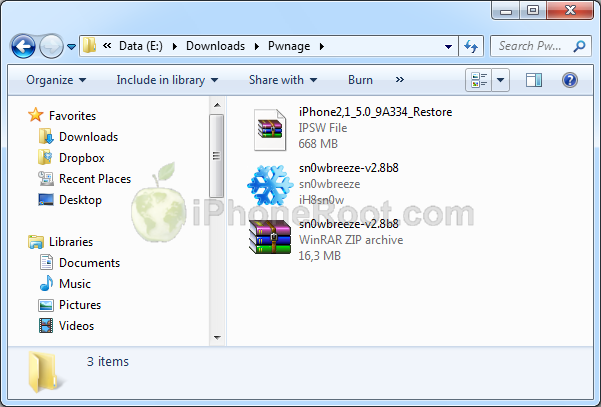
Make a folder called "Pwnage". Download a couple of things:
- Download Sn0wBreeze 2.8b8 or higher here.
- Download iOS 5 for iPhone 3GS: .
Extract the Sn0wBreeze executable from zip archive.
Connect your iPhone 3GS to the computer and launch iTunes.

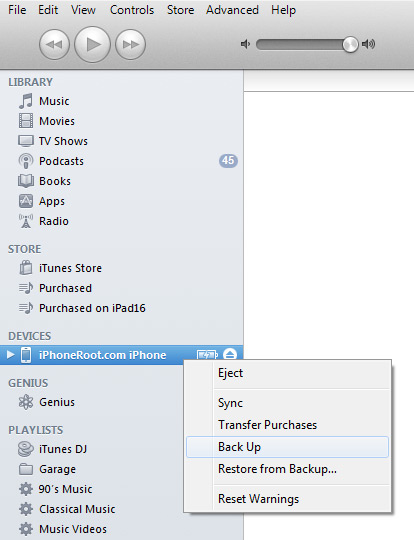
Select your iPhone from the list of devices on the left. Create a backup by right-clicking on iPhone name in Devices (iTunes left pane) and choosing Back Up.
Remember that Sn0wBreeze will preserve the baseband (modem) version. If you don't want to preserve (f.e. you don't need unlock), go ahead and update to iOS 5 in iTunes:
If you need unlock skip this and go to Step Two.
If you are already have iOS 5 installed go to Step Two.
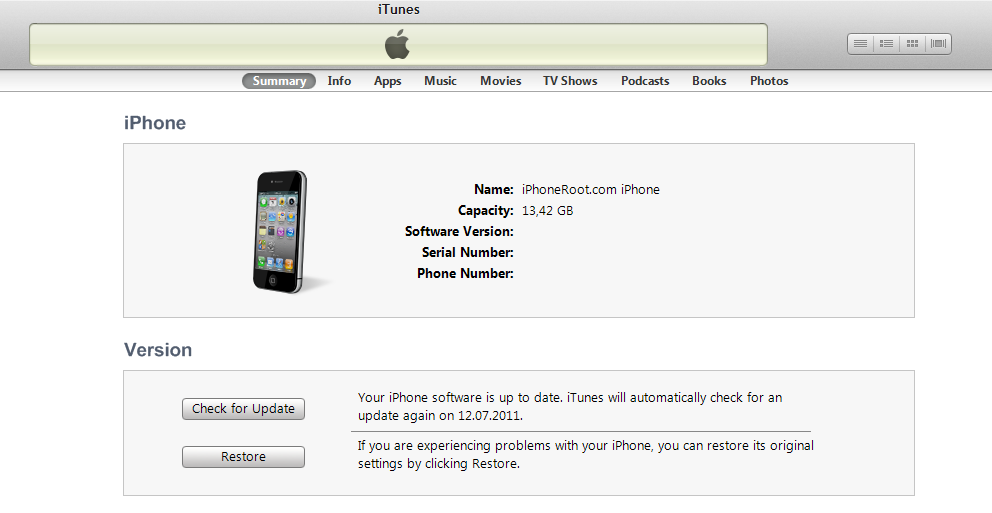
Open iTunes. Now hold down Option (Mac) or Shift (Windows) key and click the Restore button.
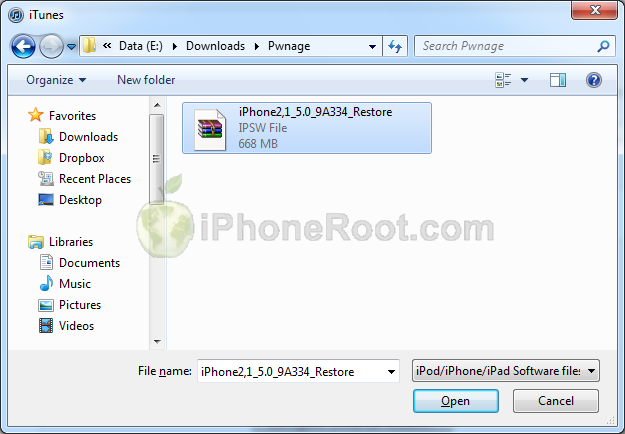
Navigate to the Pwnage folder on your desktop and select the iOS 5 firmware ipsw. Click the Open button to continue.
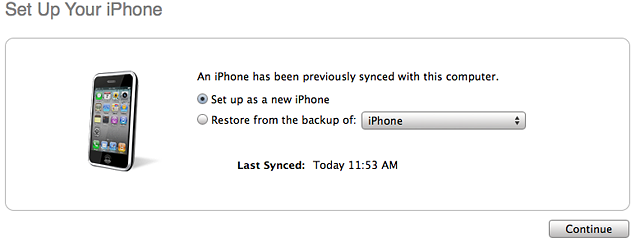
After iOS update iTunes might ask if you want to setup your iPhone as a new device or restore from the backup. Ignore this or choose anything. It doesn't matter, since you will restore once again to a custom firmware.
Step Two
Double click on Sn0wbreeze exe icon to launch the application.
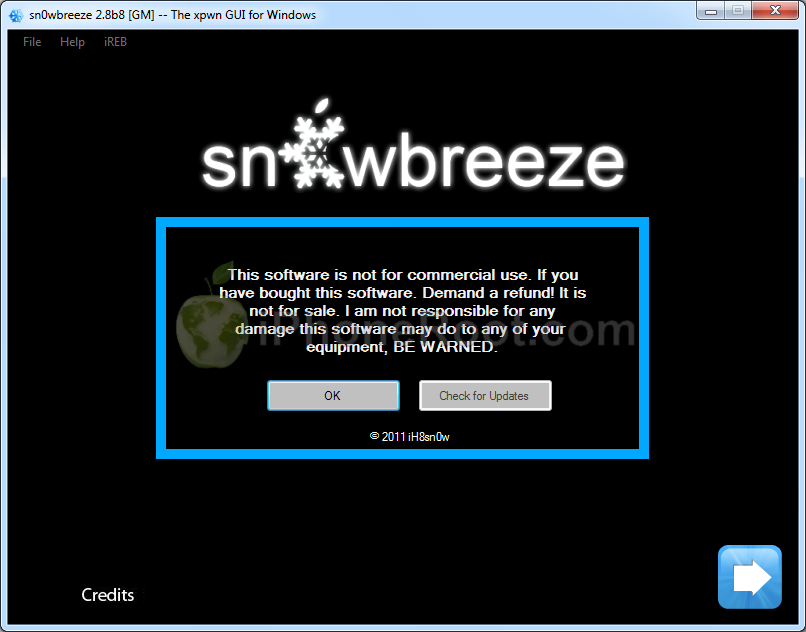
The application will launch. Click Ok button.
You will see the credits. Click Close Credits button.
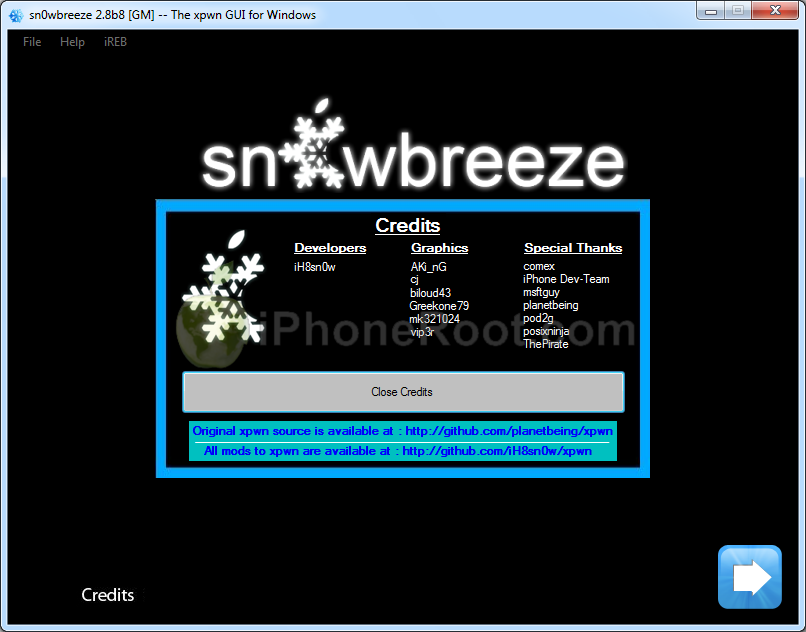
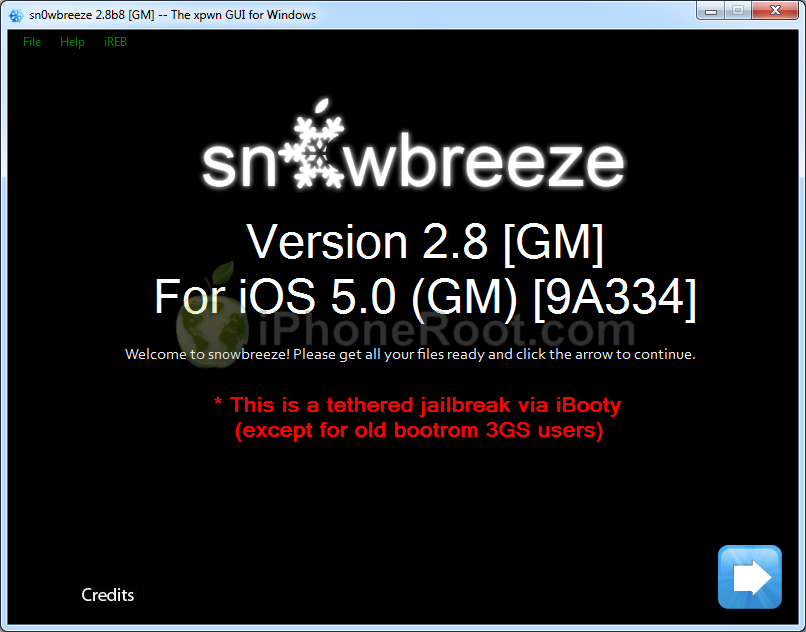
You will see the main window. Press blue-arrow button.
You will see IPSW selection menu. Click Browse button.

Navigate to folder with downloaded firmware, select it and click Open button.
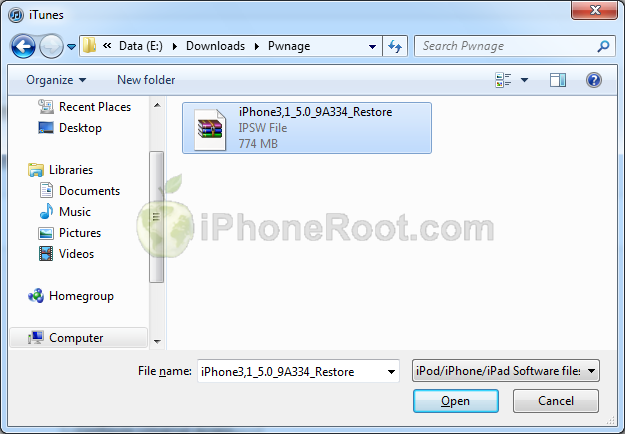
Sn0wBreeze will start identifying the firmware.
Once the firmware is verified Sn0wBreeze will ask if you have a new bootrom version or an old bootrom version.
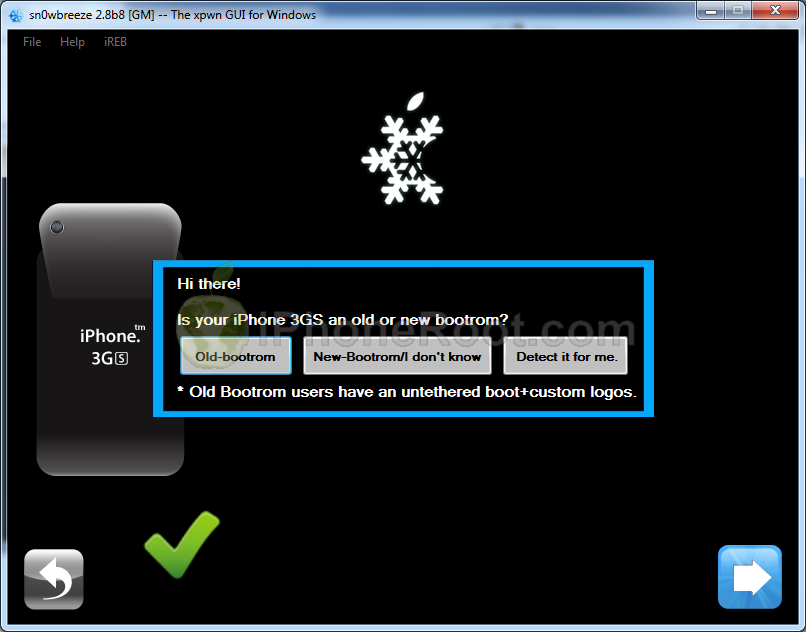
Choose Old of your iPhone 3GS device is an old one with old bootrom. Choose New if the bootrom version is new. You can also ask Sn0wBreeze to detect the bootrom version.
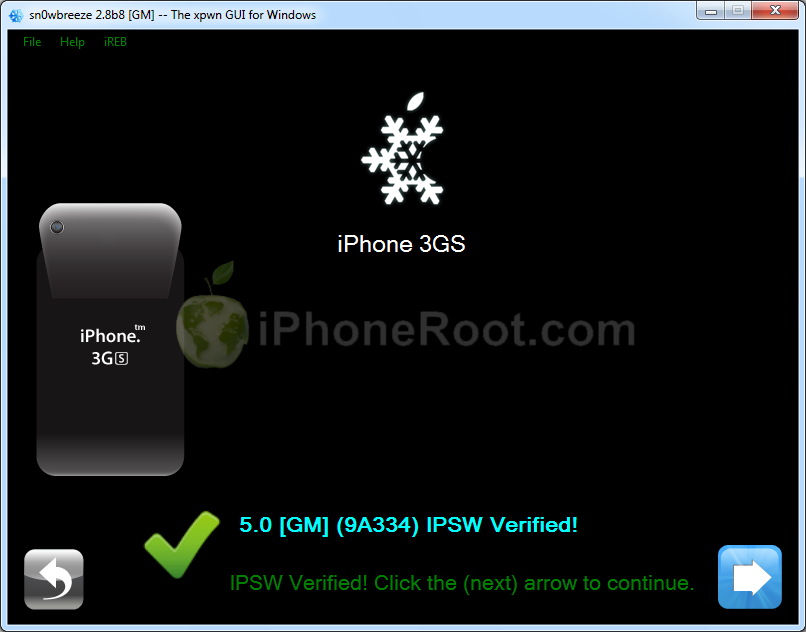
Sn0wbreeze will report the device information and firmware version. Check that this corresponds to your device. The screenshot below shows how this looks like for iPhone 3GS.
Press blue-arrow next button.
Step Three
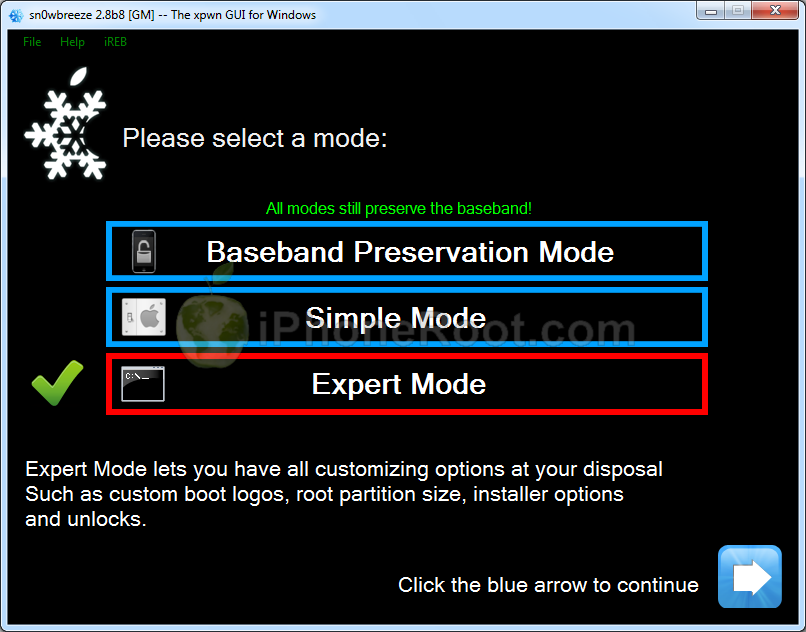
You will see the choice of 3 options.
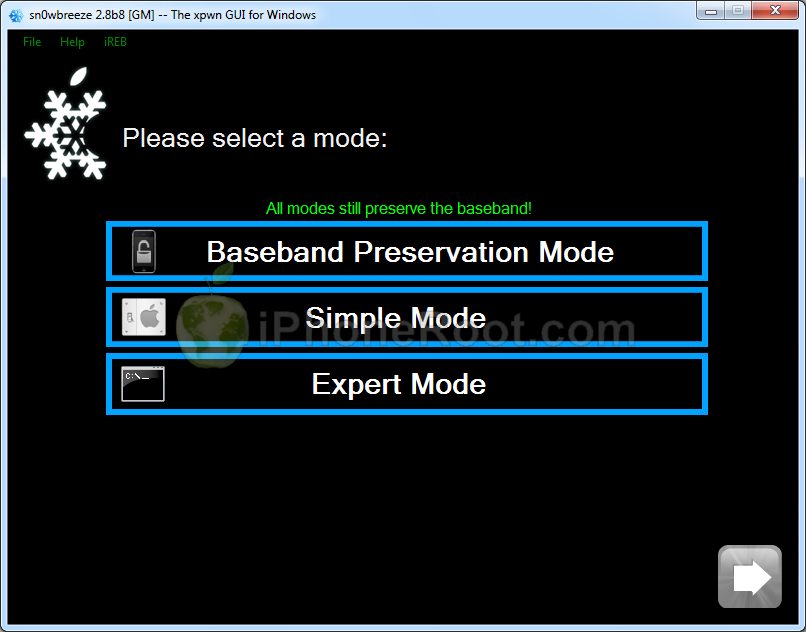
Click on Expert Mode and then Blue Arrow.
You will see the menu with General, Custom boot logos, Custom packages, Build IPSW. Some options might be disabled, if not supported with you device or firmware.
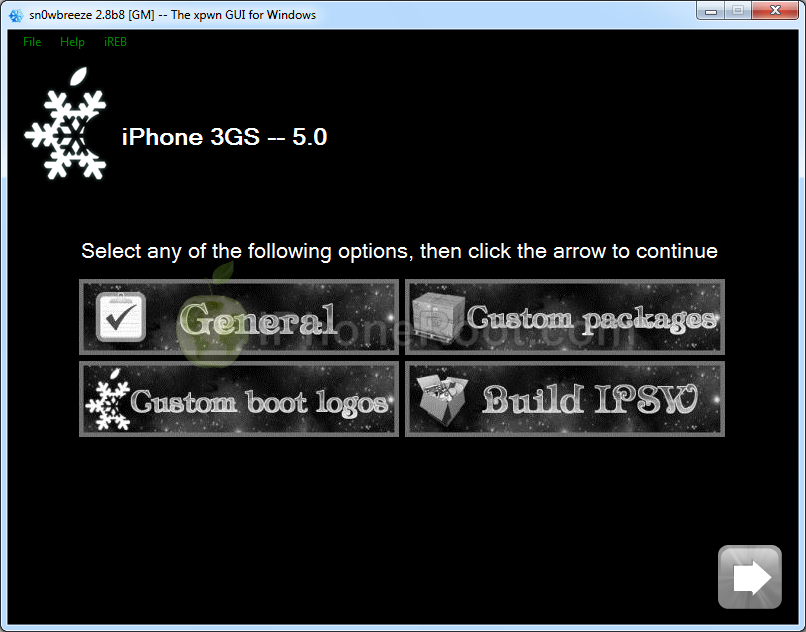
Click on General and then next blue arrow.
Step Four
Here you can enable or disable several options.
Important: Choose Activate only if you need hactivation, if you do not plan to use your device with official carrier.

Click next blue arrow button.
If you have old bootrom, you will be able to choose boot logos.
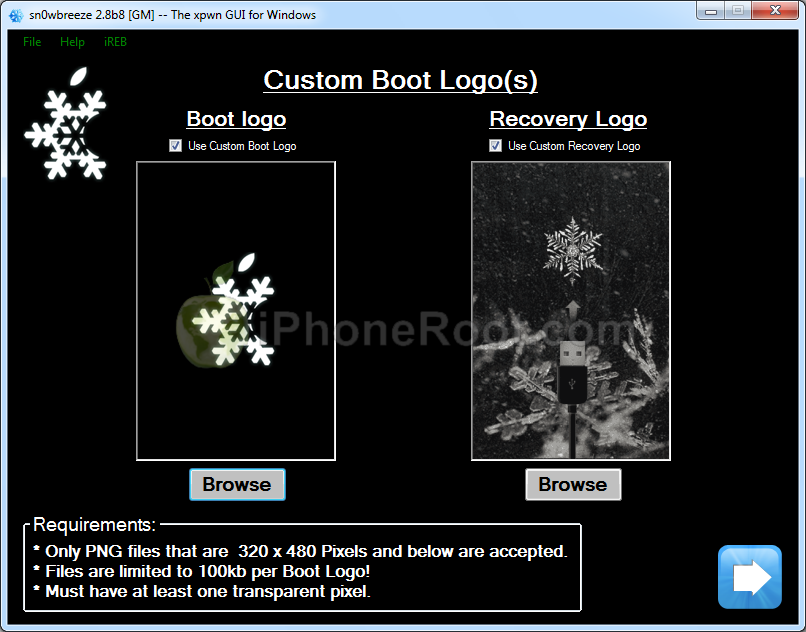
Step Five
You will see a windows where you can install custom packages, that will be embedded to your custom firmware.
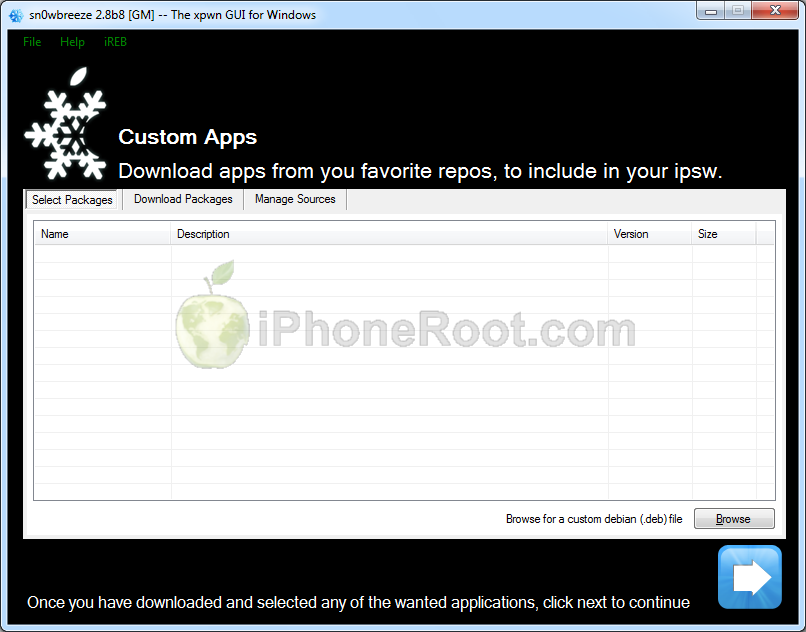
Click next. You are ready to create custom IPSW. Click Build IPSW and next button.
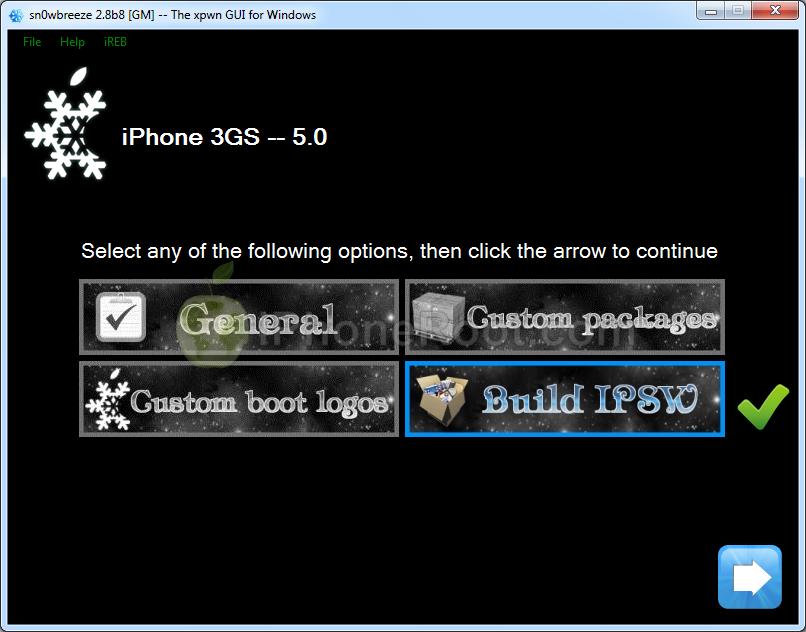
Wait while IPSW is being built.You can play PamMan game while you're waiting.

Once the custom firmware is ready SnowBreeze will show Done screen:
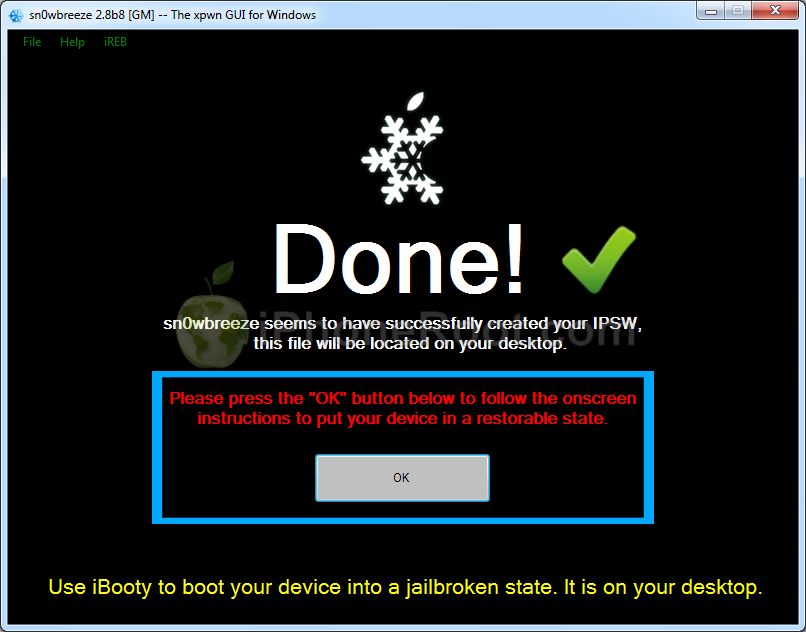
Press Ok button.
Step Six
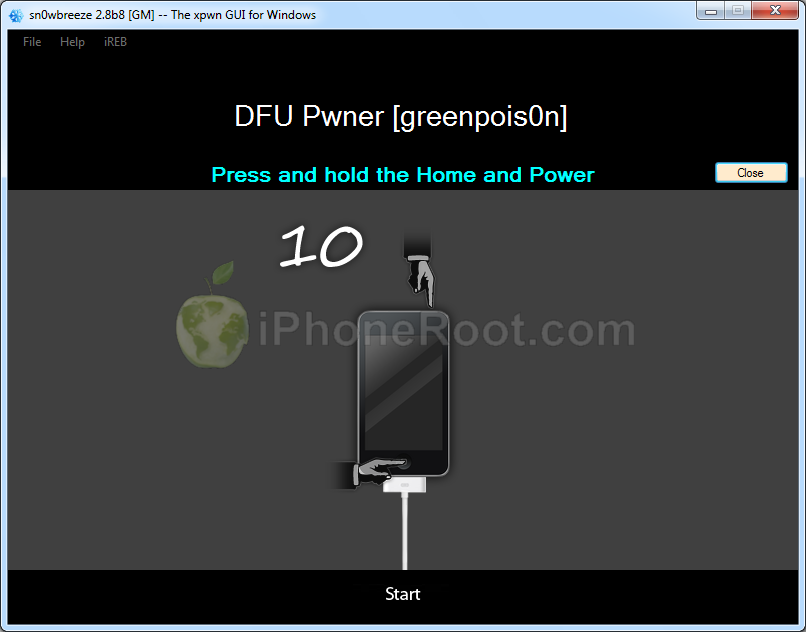
Now you have to follow instructions to put your device into DFU mode.
Please plug your iPhone into the computer and make sure its OFF then click the Start button.
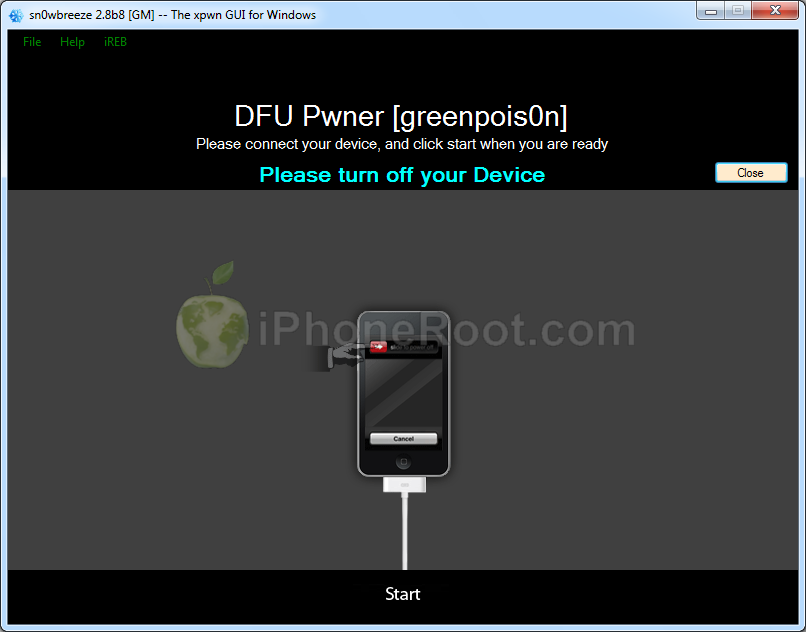
1. Hold down both the Home button and the Power button for 10 seconds.
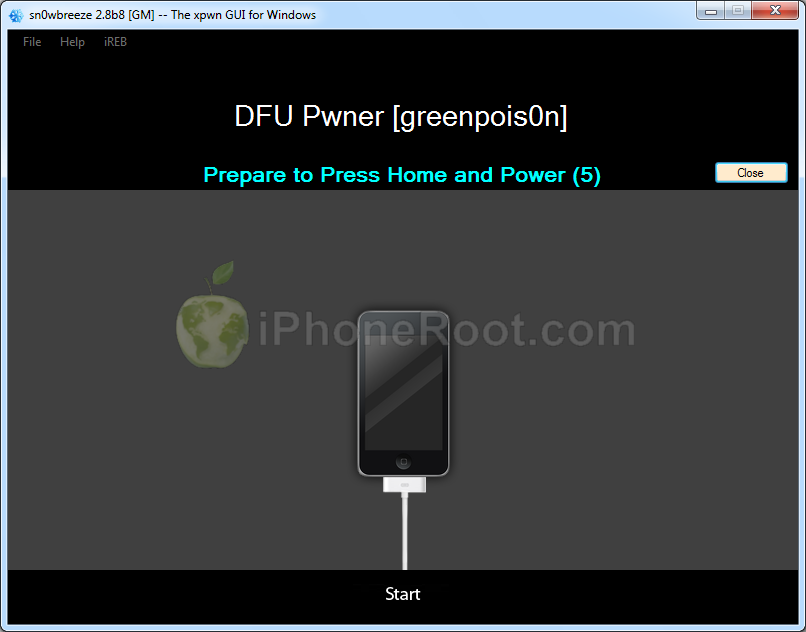
2. Release the Power button and continue holding the Home button until Sn0wbreeze detects the device.
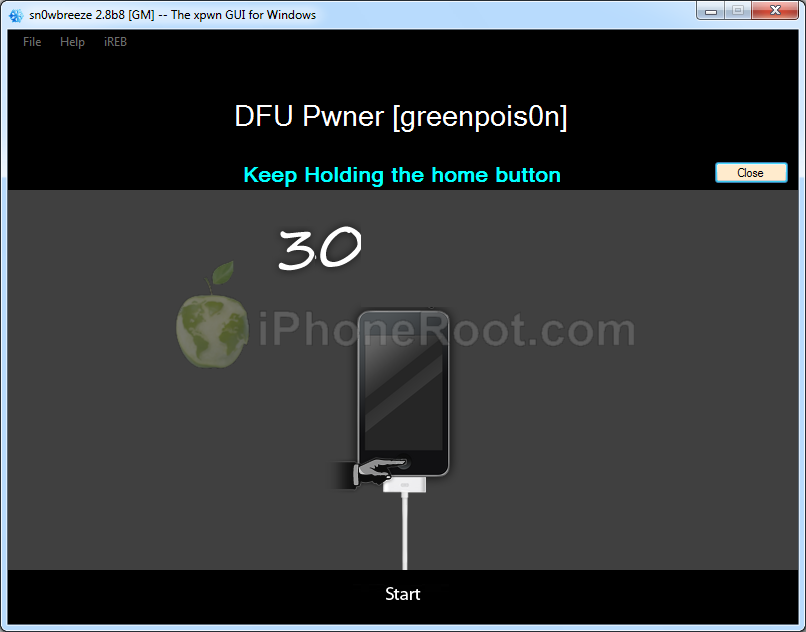
If you fail to put the device into DFU mode you can start again.
Step Seven
If you have followed the steps correctly, you will get the following message from Snw0breeze:

Close all opened windows of Sn0wbreeze and launch iTunes.
Select your device from the list of devices on the left. Now hold down Shift and click the Restore button.
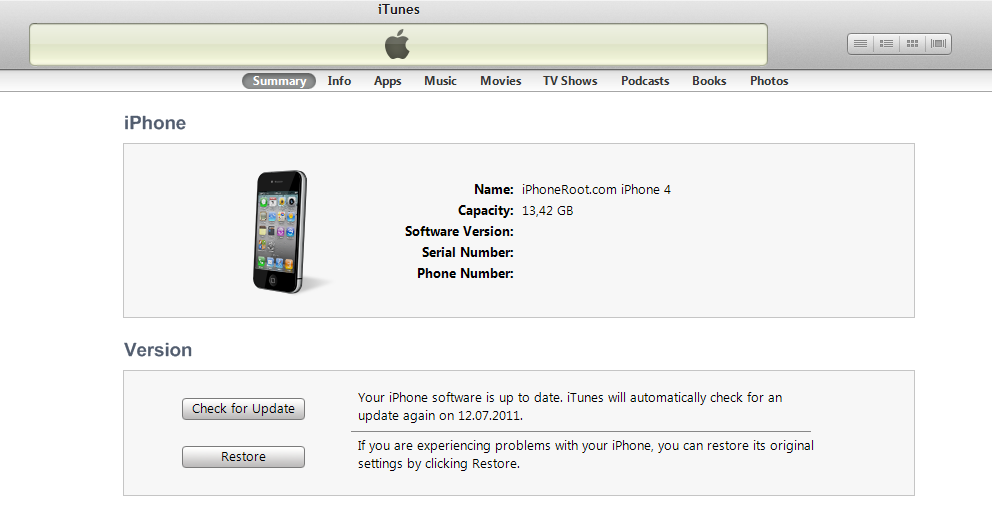
Navigate to the Desktop folder and select the newly created custom firmware ipsw. The name will be sn0wbreeze_iPhone 3GS-5.0. Click the Open button to continue.
iTunes will now restore the firmware on your iPhone. This can also take up to 10 minutes. Once done you will be rebooted into jailbroken iOS 4.3.3!
After the restore you're done! Your device is jailbroken.
iTunes will ask if you want to setup your iPhone as a new device or restore from the backup. Choose Restore from Backup if you want to preserve your contacts and other information.
Step Eight
BOOT TETHERED
Now you need to boot tethered your iPhone 3GS. You will need to do it everytime you restart.
Sn0wBreeze created folder iBooty-for-5.0 on your desktop. Open it.
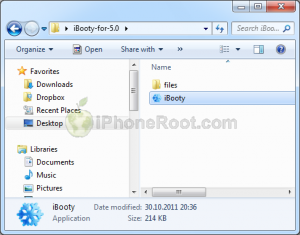
Run iBooty.
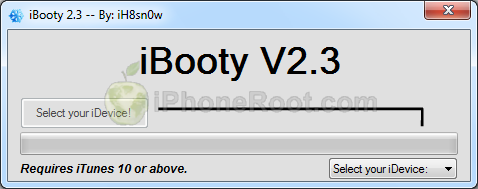
Choose your device in Select your iDevice option.
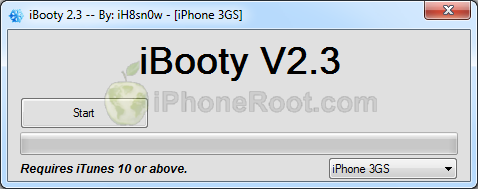
Push Start button.
Now you will need to put your device into DFU. Follow the instructions:
1. Prepare to press Home + Power
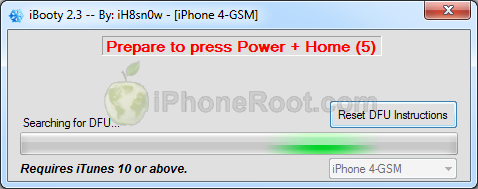
2. Press Home + Power buttons and hold them for 10 seconds.
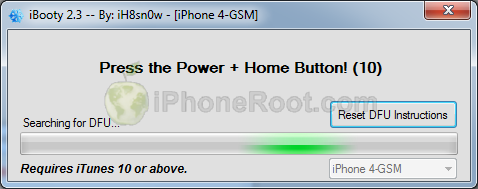
3. Release Power, but keep holding Home button for 30 seconds.
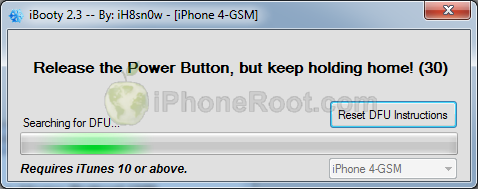
You're done. Your iPhone successfully booted tethered.
Step Nine
When your iPhone has restarted you can run Cydia. Let it do all the necessary updates.
To have access to the root file system of your iPhone (via file managers like iFunBox or iPhone Explorer) install application called afc2add in Cydia.
Step Ten
If you need carrier unlock – install ultrasn0w via Cydia (if you do not need carrier unlock skip this step). Ultrasn0w supports iPhone 4 baseband 01.59.00 and iPhone 3G/3GS basebands 04.26.08, 05.11.07, 05.12.01, 05.13.04, 06.15.00.
- Open Cydia.
- Go to Manage than click Sources.
- If you see repository http://repo666.ultrasn0w.com, go to step 8.
- Click Edit button in the top right corner.
- Then click Add button in the top left corner.
- Type http://repo666.ultrasn0w.com and click Add Source.
- Then click Done.
- Click on on newly created repository http://repo666.ultrasn0w.com.
- Click on ultrasn0w and hit Install button in the top right.
- One installed, restart your iPhone.
- Disable 3G on T-Mobile USA.
- You're done! You should see the network.
Step Eleven
Do not forget to change your default password if you've installed openssh.
Step Twelve
You can convert tethered jailbreak to a semi-tethered jailbreak using our tutorial from here.
Follow us on :
 Leave a comment, read comments [42]
Спасибо. Все заработало, iPhone 3GS, старый бут, модем 06.15
Все работает, иденственно- когда включаешь геолокацию - сразу пропадает сеть. Выключаешь - появляется.
[Reply]
admin Reply:
October 31st, 2011 at 1:11 pm
вариант - попробовать прошить заново модем с помощью redsn0w 0.9.9b7 (запустить, нажать кнопку Jailbreak и следовать инструкциям, когда будет менюшка с выбором опций оставить галку только на Install iPad Baseband)
по идее должно помочь, но тут все индивидуально.
[Reply]
NEZDESHNIY
31 Oct 11 at 11:36 am
У меня 3gs прош модема 05.13.04 нужно ли обновлять его?
[Reply]
admin Reply:
November 1st, 2011 at 12:33 am
можно. а анлок нужен?
[Reply]
aaapc
31 Oct 11 at 10:30 pm
29 неделя это старый бутром?
[Reply]
admin Reply:
November 1st, 2011 at 12:34 am
по идее старый, если год тоже старый.
лучше проверить через iDetector:
или через usb драйвере:
[Reply]
aaapc
31 Oct 11 at 10:31 pm
у меня 3ds... новый boot rom модем 06.15.00.....(всё делал как написано) во время установки прошивки sn0wbreeze_iPhone 3GS-5.0. зависает установка чёрный экран со снежинкой загрузка останавливается на 10%...подскажите что мне делать???
[Reply]
admin Reply:
November 1st, 2011 at 11:51 pm
второй раз попробовать.
если совсем не помогает - на другом компе.
если все равно никак - обновляться на обычную ios 5, потом делать джейл Redsn0w и ставить галку на install ipad baseband, чтобы заново прошить модем.
[Reply]
Aleksandr
1 Nov 11 at 10:28 pm
на другом компе попробовал всё установилось но сеть не ловит на двух симках пробовал мегафон и билайн.... постоянно в режиме поиска? устанавливал перезагружал..всёравно одно и тоже...
[Reply]
admin Reply:
November 2nd, 2011 at 12:53 pm
установилось через кастом?
[Reply]
Aleksandr
2 Nov 11 at 1:33 am
начинаю устанавливать ultrasn0w пишет что не удается определить сотовую связь подскажите что делать?
[Reply]
admin Reply:
November 2nd, 2011 at 12:54 pm
я бы запустил Redsn0w 0.9.9 и прошил модем еще раз (галку только на install ipad baseband)
[Reply]
Aleksandr Reply:
November 3rd, 2011 at 2:47 am
прошил модем ещё раз (использовал redsn0w win 0.9.9b7 )ни каких изменений сеть по прежнему не находит.
[Reply]
Aleksandr
2 Nov 11 at 11:17 am
Во! Мне наверное тоже самое нужно только для MacOS X!
[Reply]
admin Reply:
November 3rd, 2011 at 1:08 am
для макос - redsn0w 0.9.9b7
манула пока нет.
[Reply]
Константин
2 Nov 11 at 9:32 pm
у меня 3gs 05.16.05 старый бут.
я перешёл к 7 шагу,джеилбрекнул устройство.но после тюнс не предлагает( новое устройство или восстановить данные из резервной копии) айфон не включается.
[Reply]
admin Reply:
November 4th, 2011 at 10:37 pm
а что на экране? включаете через ibooty?
[Reply]
kedo
4 Nov 11 at 2:51 pm
Дошел до шага 7, совсем чуть чуть до конца восстановления не доходит и пишет: произошла ошибка (неизвестная ошибка 17) или как то так, это исправимо?и ещё у меня модем 05.16.05 что с ним можно сделать?
[Reply]
admin Reply:
November 5th, 2011 at 6:52 pm
попробуйте еще раз, запустив iReb
не получится - делайте заново кастом.
[Reply]
admin Reply:
November 5th, 2011 at 6:52 pm
а чем вам можем не нравится?
[Reply]
Siva
5 Nov 11 at 2:43 am
делал и через Redsn0w 0.9.9b8 и через Sn0wBreeze 2.8b8 сети нет через Sn0wBreeze 2.8b8 зависает перед 8м шагом не прошиваеться помогите как быть...
[Reply]
admin Reply:
November 6th, 2011 at 3:03 pm
подробнее пишите. что надо, какой модем...
[Reply]
CAU Reply:
November 7th, 2011 at 9:27 am
модем у меня 06,15,00 ios5 ставлю на прошивку Redsn0w всё идёт айфон прошивается пишет please wait... много раз потом пишет что 60000мс и гивеп ап идёт дальше, прошивка завещается, но симку не видет пишет ПОИСК,а потом нет сети!Делаю Just Boot в конце This device is already pwned with a bootrom exploit. For the time being, redsn0w requires that you manually select the EPSW in the Extras screen in order to specify the current build.This will be fixed in a future release. Сети всё так же нет, в настройках пишет сети нет номера нет ICCID без симки. обновляю сидию делаю Just Boot проблема вся таже. прошивал различными видами прошивки.Раньше была другая версия модема 05.16.05 вставлял симку он её определял но не было связи,теперь вообще вставляешь симку вытаскиваешь тишина, посоветуйте что делать как быть(сколько парюсь толку нет!
[Reply]
admin Reply:
November 7th, 2011 at 4:50 pm
попробуйте запустить redsn0w и, когда спросит, поставить галку только на Install iPad Baseband.
[Reply]
CAU Reply:
November 7th, 2011 at 9:12 pm
делал нет сети всё так же((( когда галочку ставишь на iPad Baseband выходи окно пишет да нет или отмета, я нажимаю ДА!
[Reply]
admin Reply:
November 8th, 2011 at 12:21 am
попробуйте заново с помощью sn0wbreeze 2.8 b10
[Reply]
CAU Reply:
November 9th, 2011 at 5:36 pm
у меня не создаёт iBooty-for-5.0. папку что делать? и можно узнать на каком этапе появиться связь чтобы знать
[Reply]
CAU Reply:
November 9th, 2011 at 5:39 pm
как ещё можно прошить со старым бутруном???
[Reply]
admin Reply:
November 9th, 2011 at 6:11 pm
для старого бутрома не нужна ibooty
[Reply]
admin Reply:
November 9th, 2011 at 6:11 pm
старый бутром? для него джейл отвязанный и не нужна ibooty
[Reply]
CAU Reply:
November 9th, 2011 at 6:56 pm
ммм где можно посмотреть как сделать айфон со старым бутрумом? я получал дар этот айфон и поглупости не взял симку с ним предлагали. как и что я не сильно разбираюсь читаю на форумах и голова болит как что не пойму((( помогите
[Reply]
admin Reply:
November 9th, 2011 at 10:56 pm
что значит сделать айфон со старым бутромом?
[Reply]
CAU Reply:
November 10th, 2011 at 9:18 am
old-bootrom мне это написало в iDetector Iphone 3gs 32gb IOS 5.0 модем прошивка 06,15,00 при включение пишет вставте симку для активации айфона!как узнать привязанный у меня он или нет?и что же делать
[Reply]
admin Reply:
November 10th, 2011 at 1:46 pm
ну раз старый бутром - значит джейлбрейк можно сделать отвязанный.
[Reply]
CAU Reply:
November 10th, 2011 at 6:39 pm
как? я просто вообще далёк
[Reply]
admin Reply:
November 11th, 2011 at 12:45 am
ответить правильно на вопрос о версии бутрома при джейлбрейке. (создании прошивки)
[Reply]
CAU Reply:
November 11th, 2011 at 8:29 am
я делаю с помощью sn0wbreeze-v2.8b10 old-bootrom ставлю, всё делаеться но нет сети всё равно( на каком этапе скажите пожалуйста показывает связь
[Reply]
admin Reply:
November 11th, 2011 at 2:48 pm
сеть появляется после установки ultrasn0w.
если вы все сделали правильно, то получается, что у вас что-то с модемом. необходимо заново прошить модем с помощью sn0wbreeze или лучше с помощью redsn0w.
запустите Redsn0w и сделайте Jailbreak - Install iPad Baseband.
[Reply]
CAU
6 Nov 11 at 1:27 am
У меня модем 05.16.05 iphon 3gs сейчас можно анлок сделать??
[Reply]
admin Reply:
November 6th, 2011 at 3:09 pm
да, но нужно повышать модем до 06.15
[Reply]
aTX78 Reply:
November 6th, 2011 at 6:59 pm
А как это можно сделать доскажите пожалуйста!
[Reply]
admin Reply:
November 6th, 2011 at 11:13 pm
redsn0w 0.9.9b6 или выше. когда спросят - поставить галку в Cydia и Install iPad baseband.
маловероятно, но могут быть проблемы с GPS
можно и с помощью sn0wbreeze 2.8b10 - скоро обновлю инструкцию.
[Reply]
aTX78
6 Nov 11 at 2:30 pm