 iPhoneRoot.com

News from category ‘Tutorial’
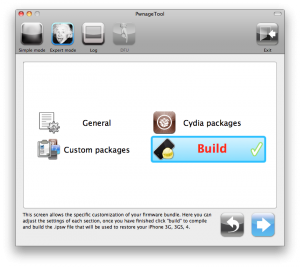
Step-by-step Tutorial: jailbreak iOS 4.2.1 on iPhone/iPod/iPad using PwnageTool 4.2 (Mac OS)
UPDate: Attention! We've received info, that Apple stopped signing iOS 4.2 for devices for which iOS 4.3 is available. This means you will not be able to restore to 4.2.1 without saved SHSH keys.
UPDATE: Please, consider reading our Jailbreak & Unlock FAQ, especially if you have questions or troubles.
Using this tutorial you will be able to jailbreak iOS 4.2.1 running on iPhone 3G, iPhone 3GS, iPhone 4, iPod Touch 3G, iPod Touch 4G and iPad. Pwnagetool will also preserve baseband version if you need carrier unlock. If you have updated the baseband to version 06.15, you can use this tutorial. This tutorial uses PwnageTool 4.2 for Mac OS X.
We are not developers of jailbreak utilities, so we cannot assure that everything will work just fine. However we tried this tutorial on several devices and succeeded.
We will use iPhone 4 in our jailbreak tutorial. The process is the same for all devices.
Step One
Make a folder called "Pwnage" on the desktop. Download a couple of things:
 Leave a comment, read comments [33]
Step-by-step tutorial: untethered jailbreak iOS 4.2.1 on iPhone, iPod or iPad using Greenpois0n for Windows
These are step-by-step instructions on how to jailbreak iOS 4.2.1 on iPhone 3GS, iPhone 4, iPad, iPod Touch 2G, iPod Touch 3G, iPod Touch 4G using Greenpois0n for Windows. Tutorial for Mac OS X users is available here. All the steps are the same for all devices, we will cover iPhone.
Greenpois0n has been updated to support the iOS 4.1 and iOS 4.2.1 firmware. Use Limera1n if you want to jailbreak iOS 4.0, iOS 4.0.1, iOS 4.0.2.
Remember: Greenpois0n recommends a clean restore before continuing.
Unlockers: do not update to iOS 4.1 or iOS 4.2.1 if you need the unlock. Ultrasn0w does not support that baseband yet. The only exception is the iPhone 4. Experienced users can also try update to iOS 4.2.1 without upgrading your baseband by using TinyUmbrella. Start TSS Server->Start iTunes->Plug in your iPhone->Restore 4.2.1->Error 1013->Put phone into DFU Mode->Launch Greenpois0n.
We are not authors of this app. We do not promise that everything will go well, use this tutorial at your own risk.
UPDATE: Please, consider reading our Jailbreak & Unlock FAQ, especially if you have questions or troubles.
Step One
Open your web browser and download the latest Windows version of GreenPois0n from here.
Leave a comment, read comments [396]
Step-by-step tutorial: untethered jailbreak iOS 4.2.1 on iPhone, iPod or iPad using Greenpois0n for Mac OS

These are step-by-step instructions on how to jailbreak iOS 4.2.1 on iPhone 3GS, iPhone 4, iPad, iPod Touch 2G, iPod Touch 3G, iPod Touch 4G using Greenpois0n for Mac OS X. Tutorial for Windows users is available here. All the steps are the same for all devices, we will cover iPhone.
Greenpois0n has been updated to support the iOS 4.1 and iOS 4.2.1 firmware. Use Limera1n if you want to jailbreak iOS 4.0, iOS 4.0.1, iOS 4.0.2.
Remember: Greenpois0n recommends a clean restore before continuing.
Unlockers: do not update to iOS 4.1 or iOS 4.2.1 if you need the unlock. Ultrasn0w does not support that baseband yet. The only exception is the iPhone 4. Experienced users can also try update to iOS 4.2.1 without upgrading your baseband by using TinyUmbrella. Start TSS Server->Start iTunes->Plug in your iPhone->Restore 4.2.1->Error 1013->Put phone into DFU Mode->Launch Greenpois0n.
We are not authors of this app. We do not promise that everything will go well, use this tutorial at your own risk.
UPDATE: Please, consider reading our Jailbreak & Unlock FAQ, especially if you have questions or troubles.
Step One
Open your web browser and download the latest Mac version of GreenPois0n from here.
Leave a comment, read comments [75]
Beta-version Of Jailbreak For iOS 4.2.1 Released
The iPhone Dev team has just released the second beta of their untethered RedSn0w jailbreak (the first beta has been released few hours ago and has more bugs).
New jailbreak is called "Jailbreak Monte", as it uses new "backup method". The iPhone Dev Team warns that their beta-version is not a general release and you should back up all your media before using it. There are also other limitations and bugs:
Leave a comment, read comments [5]
Step-by-step Tutorial: How to Jailbreak and Unlock Your iPhone 3G/3GS Using RedSn0w 0.9.6b5 (Mac OS X) [iOS 4.2.1]
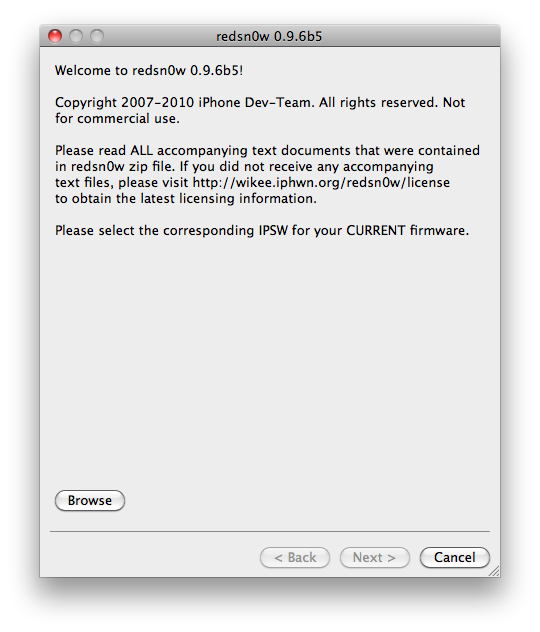
Jailbreak utility RedSn0w 0.9.6 b5 is available for both Windows and Mac OS X. The process is the same on both operating systems. So you can use redsn0w tutorial for windows. There is only one major difference - download redsn0w for Mac OS here or .
Step-by-step Tutorial: How to Jailbreak and Unlock Your iPhone 3GS Using RedSn0w 0.9.6b5 (Windows) [iOS 4.2.1]

UPDATE: Please think first, before you do something.
UPDATE 2: If you have 05.13 baseband or lower - do not update to 4.2.1, use PwnageTool to create custom firmware!
UPDATE 3: If you have new bootrom and ios 4.1, do not update to 4.2.1 - you will loose untethered jailbreak.
UPDATE 4: WARNING: updating to iPad baseband for iPhone unlock may disable your GPS
This is step-by-step instructions on how to jailbreak and unlock your iPhone 3GS on iOS 4.2.1 firmware using RedSn0w 0.9.6b5 for Windows.
For iPhone 3G use this tutorial.
If you have an iPhone 3GS with the new bootrom you will only be able to perform a tethered jailbreak at this time. This means you will need Redsn0w's assistance to boot into your jailbroken device.
UPDATE: Please, consider reading our Jailbreak & Unlock FAQ, especially if you have questions or troubles.
IMPORTANT FOR UNLOCKERS
During this process you can update your baseband to the 06.15 version. If you are on 05.14 or 05.15 or higher you will need to do this to unlock. You do not need to do this for jailbreak only. Please read the following very carefully before deciding whether to do this.
Leave a comment, read comments [404]
Step-by-step Tutorial: How to Jailbreak and Unlock Your iPhone 3G Using RedSn0w 0.9.6b5 (Windows) [iOS 4.2.1]
UPDATE: Please think first, before you do something.
UPDATE 2: If you have 05.13 baseband or lower - do not update to 4.2.1, use PwnageTool to create custom firmware!
UPDATE 3: WARNING: updating to iPad baseband for iPhone unlock may disable your GPS
UPDATE: Please, consider reading our Jailbreak & Unlock FAQ, especially if you have questions or troubles.
This is step-by-step instructions on how to jailbreak and unlock your iPhone 3G on iOS 4.2.1 firmware using RedSn0w 0.9.6b5 for Windows.
For iPhone 3GS use this tutorial.
IMPORTANT FOR UNLOCKERS
During this process you can update your baseband to the 06.15 version. If you are on 05.14 or 05.15 or higher you will need to do this to unlock. You do not need to do this for jailbreak only. Please read the following very carefully before deciding whether to do this.
Leave a comment, read comments [806]
Step-by-step Tutorial: How to Jailbreak and Unlock Your iPhone 3GS Using PwnageTool 4.1.3 (Mac OS) [iOS 4.1]
UPDATE: Please think first, before you do something.
UPDATE 2: If you have 05.13 baseband or lower - do not update! Use PwnageTool.
UPDATE 3: If you have 4.1 and 3gs with new bootrom, do not update to 4.2.1, create custom 4.1 firmware using pwnagetool.
UPDATE 4: WARNING: updating to iPad baseband for iPhone unlock may disable your GPS
UPDATE: Please, consider reading our Jailbreak & Unlock FAQ, especially if you have questions or troubles.
These are instructions on how to jailbreak and unlock your iPhone 3GS on iOS 4.1 using PwnageTool 4.1.3 for Mac OS X. This tutorial will explain how to upgrade your baseband if needed for an unlock.
For iPhone 3G use this tutorial.
There is no unthethered jailbreak for new iPhone 3GS bootroms and iOS 4.2.1 yet, so you should stay at iOS 4.1.
Important: iPhone3GS users with old bootroms who want to go to 4.2.1 and unlock should not use this PwnageTool! Update to stock 4.2.1 first, then use new redsn0w to update your baseband.
Step One
Make a folder called "Pwnage" on the desktop. Download a couple of things:
Leave a comment, read comments [15]
Step-by-step Tutorial: How to Jailbreak and Unlock Your iPhone 3G Using PwnageTool 4.1.3 (Mac OS) [iOS 4.2.1]
UPDATE: Обязательно (!) думайте перед тем, как что-нибудь сделать. Читайте внимательно и еще раз думайте. Не понятно - читайте снова. Спрашивайте до, а не после.
UPDATE 2: Если у вас 05.13 baseband и ниже - она ломается старыми способами, не надо обновляться до 05.14, 05.15 и 06.15. Хочется перейти на 4.1/4.2 - тогда делайте кастом прошивку с помощью pwnagetool.
UPDATE 3: Обновив версию baseband до iPad для анлока iPhone можно потерять GPS
UPDATE: Please, consider reading our Jailbreak & Unlock FAQ, especially if you have questions or troubles.
Данное пошаговое руководство позволит вам сделать джейлбрейк и анлок iPhone 3G на iOS 4.2.1 с помощью PwnageTool 4.1.3 под Mac OS X. Здесь также будут даны инструкции по обновлению baseband, если это необходимо для анлока (отвязки от оператора сотовой связи).
Для iPhone 3GS используйте руководство для iPhone 3GS.
Для пользователей Windows есть соответствующее пошаговое руководство.
Шаг 1
Создайте папку "Pwnage" на десктопе. Скачайте в нее все необходимое:
Leave a comment, read comments [31]
Step-By-Step Tutorial: How to install MobileTerminal on iPhone with iOS 4.x and iOS 5.x
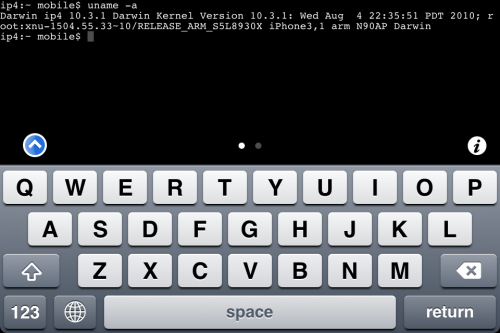
MobileTerminal is a terminal emulator application for the iPad and iPhone. The version of MobileTerminal that is available in Cydia doesn't work with iPhone iOS 4.x and iOS 5.x. However there are beta versions that do work, but aren't on Cydia because they are still in beta stages. This tutorial will show you step-by-step how to install MobileTerminal on iPhone with iOS 4.x and iOS 5.x (tutorial for iPad is here). If you have old version of MobileTerminal installed - uninstall it in Cydia (Search - MobileTerminal - Remove).
First of all you need to jailbreak your iPhone. After you successfully jailbreaked iPhone:
- Run Cydia by tapping on Cydia icon
- The Cydia will start:

Leave a comment, read comments [1]
Step-By-Step Tutorial: How to install MobileTerminal on Apple iPad
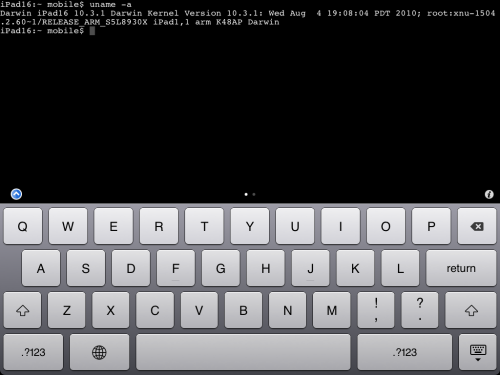
MobileTerminal is a terminal emulator application for the iPad and iPhone. The version of MobileTerminal that is available in Cydia doesn't work with iPad iOS 3.2.2, iOS 4.x and iOS 5.x. However there are beta versions that do work, but aren't on Cydia because they are still in beta stages. This tutorial will show you step-by-step how to install MobileTerminal on iPad (tutorial for iPhone is here). If you have old version of MobileTerminal installed - uninstall it in Cydia (Search - MobileTerminal - Remove).
First of all you need to jailbreak your iPad. After you successfully jailbreaked iPad:
- Run Cydia by tapping on Cydia icon
- The Cydia will start:
Step-by-step Tutorial: how to jailbreak and unlock your iPhone using PwnageTool 4.1.2 (Mac)
These are instructions on how to jailbreak your iPhone using PwnageTool 4.1.2 for Mac OS X. If you need unlock and you have not updated to iOS 4 you will be able to preserve baseband and unlock iPhone using ultrasn0w.
This guide will work for iPhone 4, iPhone 3GS, iPhone 3G, iPod Touch 3G, iPod Touch 4G, iPad and AppleTV. Just use the right firmware and select the right device (step four).
UPDATE: Please, consider reading our Jailbreak & Unlock FAQ, especially if you have questions or troubles.
Step One
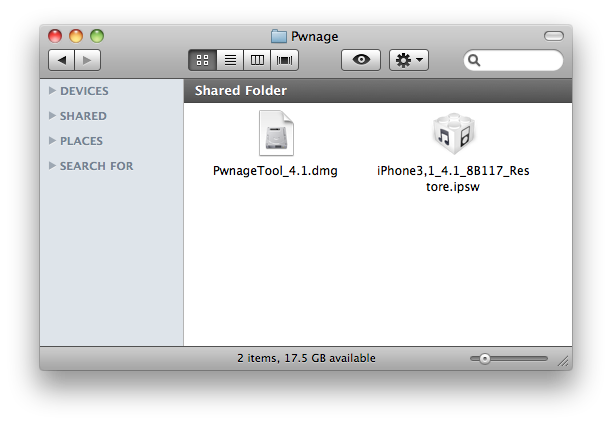
Make a folder called "Pwnage" on the desktop. Now you need to download there PwnageTool 4.1.2 from here and iOS 4.1 firmware from here.
When downloading the IPSW file, it is best to download it with Firefox since Safari often auto extracts it!
Step Two
Double click to mount PwnageTool then drag the PwnageTool icon into the Pwnage folder.
Leave a comment, read comments [33]
Video: How to Jailbreak iPhone iOS 4.1 using limera1n on a Mac
In addition to our LimeRa1n jailbreak tutorials, here is a nice video showing all the process:
LimeRa1n supports iPhone 3GS, iPhone 4, iPod Touch 3G and iPod Touch 4G with iOS 4.0 - iOS 4.1, and iPad with iOS 3.2.2.
Here you can find our LimeRa1n tutorials:
Step-by-step Tutorial: how to jailbreak iOS 4.0-4.1 on iPhone or iPod using Limera1n (Mac)

These are instructions on how to jailbreak your iPhone 3GS (all bootroms) or iPhone 4 using Limera1n for Mac OS X. Limera1n supports iOS 4.0, iOS 4.0.1, iOS 4.0.2 and iOS 4.1. Use the same steps to jailbreak iPod Touch 4G and iPod Touch 3G and even iPad. You can find the Windows version of this tutorial here.
Remember: Do not update to iOS 4.1 if you need the unlock. Ultrasn0w does not support that baseband yet.
UPDATE: Please, consider reading our Jailbreak & Unlock FAQ, especially if you have questions or troubles.
Step 1
Open your browaer and navigate to and download LimeRa1n for Mac by clicking on the Mac logo.

Step-by-step Tutorial: how to jailbreak iPad with iOS 3.2.2 using Limera1n (Windows)
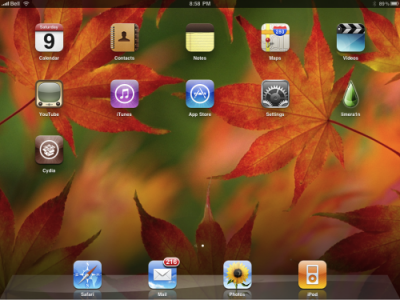
These are instructions on how to jailbreak your iPad with latest iOS 3.2.2 using Limera1n for Windows. You can find the Mac OS version of this tutorial here.
UPDATE: Please, consider reading our Jailbreak & Unlock FAQ, especially if you have questions or troubles.
Step 1
Open your browaer and navigate to and download LimeRa1n for Windows by clicking on the Windows.
When prompted save the download to your desktop
Leave a comment, read comments [1]